Free 0.1.3 and Pro 0.1.3 documentation.
Close Forms After X Entries does one job: it closes a selected WPForms Lite form after an exact number of successful submissions. It stores only the form ID, the limit, the closed message, and one integer counter. It never reads or stores submitted names, email addresses, IP addresses, cookies, or field values.
Requirements
| Component | Requirement |
|---|---|
| WordPress | 6.0 or newer |
| PHP | 7.4 or newer |
| WPForms | WPForms Lite 1.9.0 or newer, active |
| Access | A WordPress administrator who can manage site options |
Install the free plugin
- Install and activate WPForms Lite.
- Create and publish the form you want to limit.
- Install Close Forms After X Entries from WordPress.org after its directory listing is approved, or upload the supplied release ZIP for testing.
- Activate the plugin.
- Open WPForms > Entry Limit.
If WPForms is unavailable, the plugin registers no public processing hooks and shows an administrator notice. Existing forms remain under WPForms control.
Close the first form
- Choose the form from the selector.
- Enter the total number of successful submissions to accept.
- Write the message visitors should see after the form closes.
- Check Close this form at the limit.
- Select Save changes.
- Send real test submissions until the limit is reached.
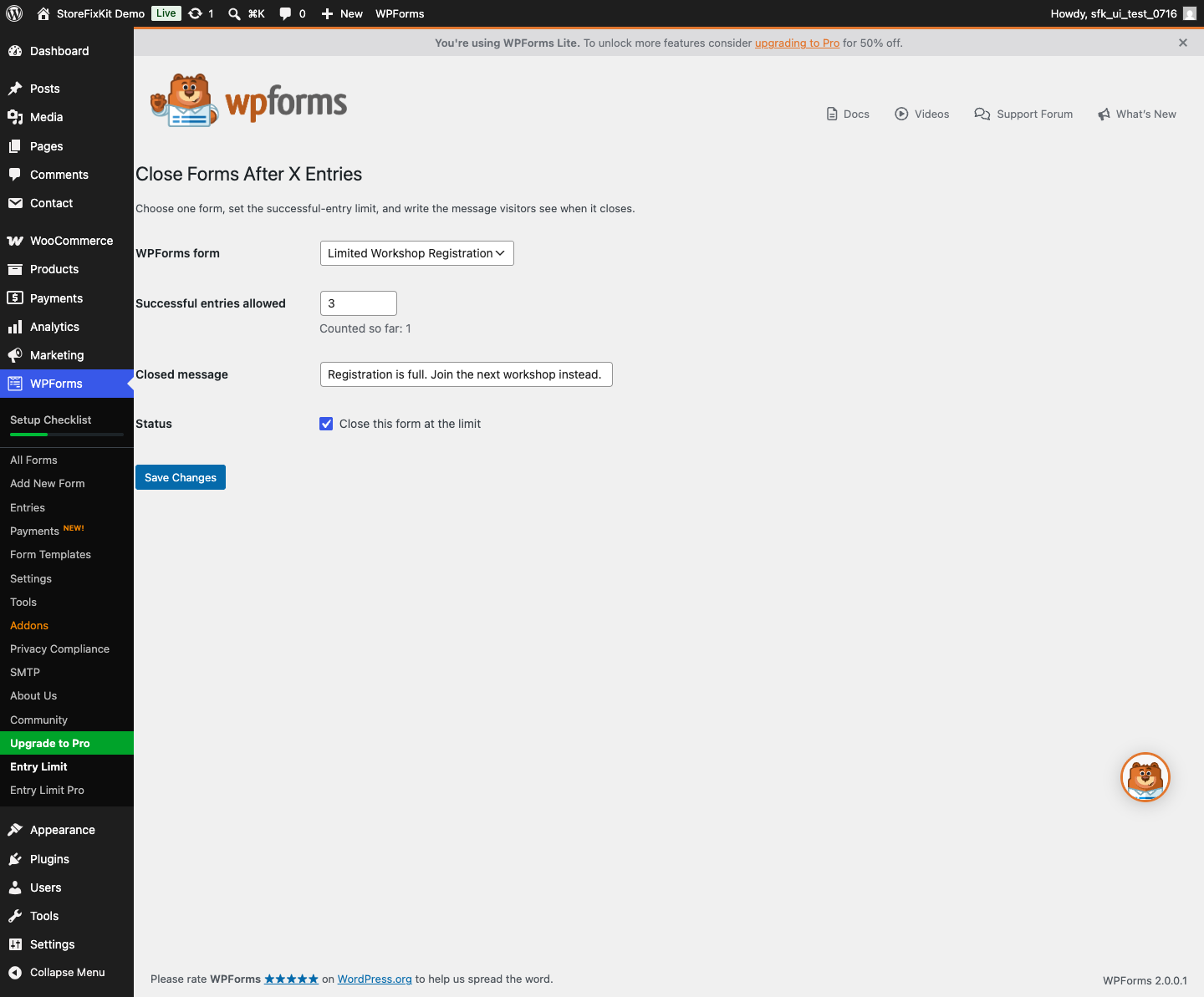
The free plugin limits one form. A zero, missing, or malformed limit leaves the form open instead of guessing.
What counts as an entry
The counter is committed only after WPForms reaches its documented successful-completion hook. Validation failures, spam, processing errors, and unsuccessful requests do not become committed entries.
Before WPForms performs its normal side effects, StoreFixKit atomically reserves the next available slot. This prevents two simultaneous visitors from both taking the final spot. If later WPForms processing fails, the uncommitted reservation is released automatically.
The plugin does not inspect submitted fields. WPForms Lite can report an entry ID of zero when entry storage is unavailable; the successful completion event still provides the authoritative completion boundary.
What visitors see after the limit
On a fresh page render, the form is replaced by the escaped closed message. A cached page can still display an old form, so the server checks again when the visitor submits and blocks a late request before WPForms sends notifications or saves an entry.
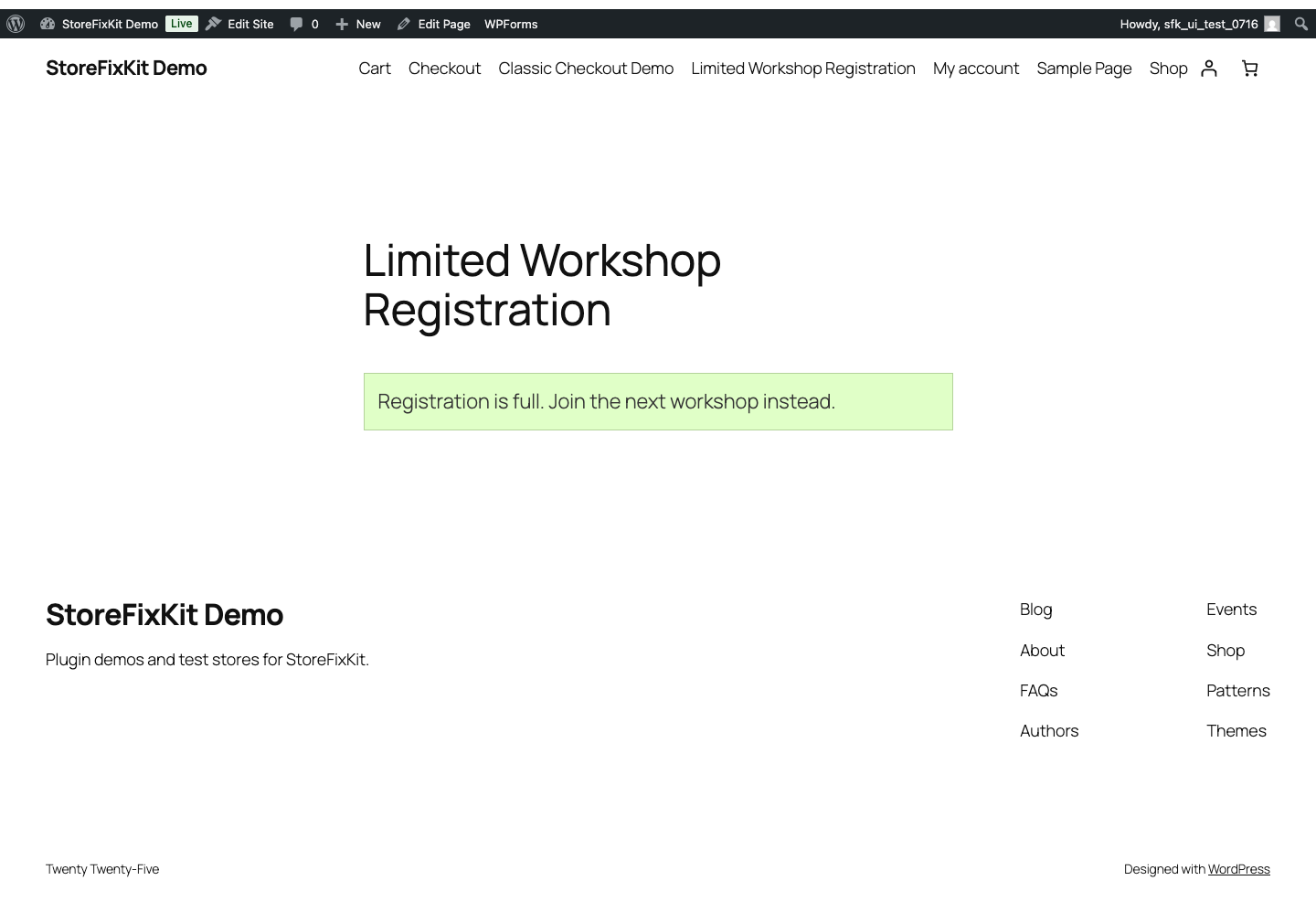
Free and Pro
Free keeps one lifetime form limit active without a StoreFixKit account or license. Pro adds limits for up to 1,000 forms, optional remaining-spots text, and an authorized manual reset for a selected counter.
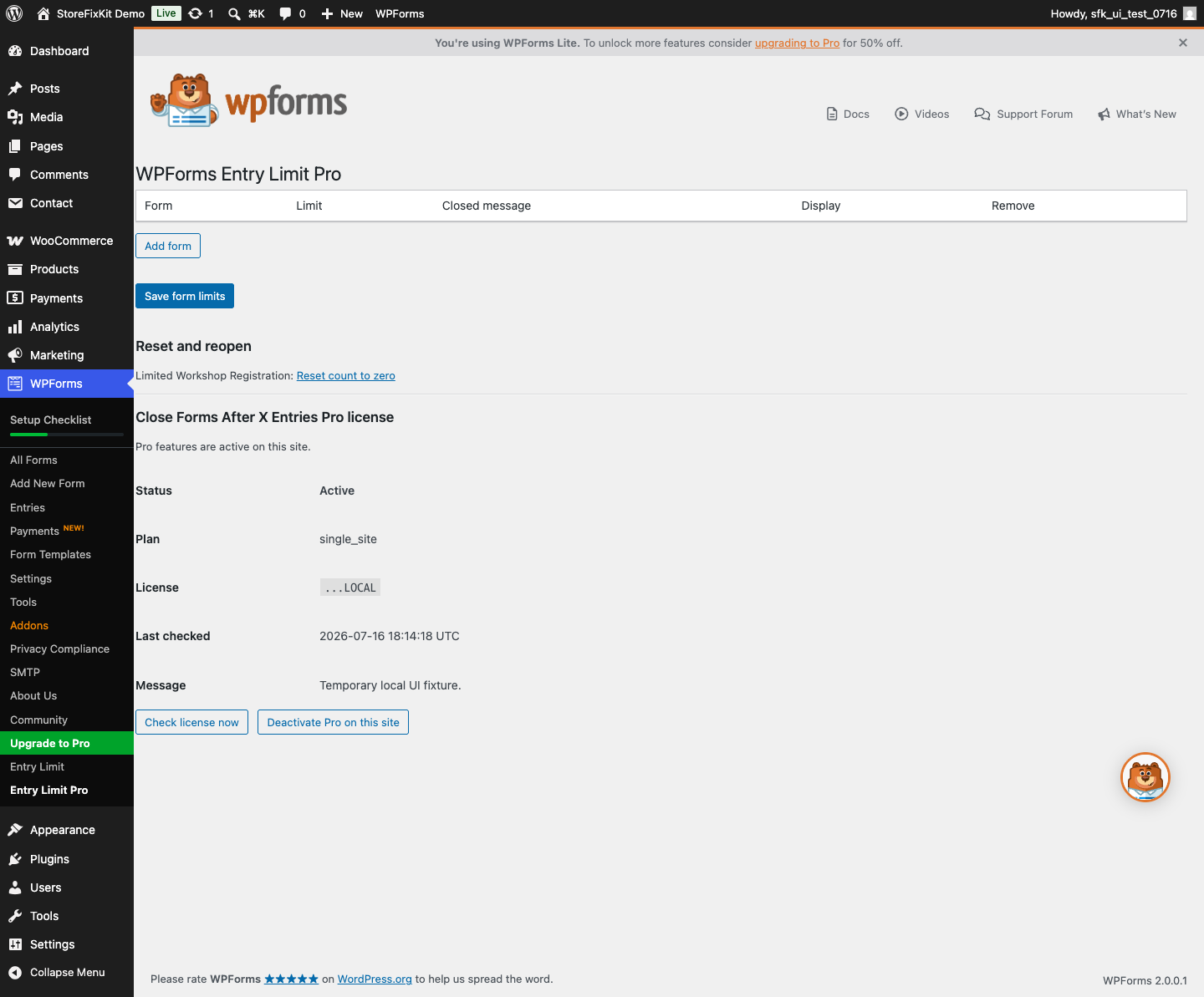
Deactivating Pro leaves the first valid free form limit working. Resetting a Pro counter changes only the StoreFixKit integer for that selected form; it does not delete WPForms entries, notifications, forms, or submission data.
Start the 14-day Pro trial
- Open the product page.
- Select Start 14-day trial. No card is required to begin.
- Stripe returns to the StoreFixKit success page and the signed webhook creates a product-bound license.
- Copy the key and download the Pro 0.1.3 ZIP.
- Add a payment method through Add payment method / manage billing before day 14 to continue the annual subscription. Stripe cancels the subscription at trial end when no payment method has been added.
Install and activate Pro
- Keep WPForms Lite and the free plugin active.
- Upload and activate the Pro ZIP beside Free.
- Return to WPForms > Entry Limit.
- Paste the product license key into the Pro license panel and select Activate Pro.
- Add the extra form limits you need and save.
Use Check license now to refresh status. Use Deactivate Pro on this site before moving the license. A license or StoreFixKit API outage cannot disable the first free limit.
Cache, concurrency, and resource use
- The final slot is reserved with one bounded atomic database update.
- The plugin creates no custom table, scheduled task, analytics event, cookie, frontend script, or frontend stylesheet.
- It makes no public remote request and performs no form-catalog scan on unrelated pages.
- A cached form page is not treated as proof that a slot is available; the submitted request is checked again server-side.
- If the counter cannot be read or updated reliably, the form remains open and uncertain state is not mutated.
Privacy and security
- Settings writes require administrator capability and a WordPress nonce.
- Form IDs and limits are validated as bounded positive integers.
- Messages are sanitized on save and escaped on output.
- Submitted field values are never read, copied, logged, or sent to StoreFixKit.
- WPForms forms, entries, notifications, confirmations, and user accounts remain untouched.
Troubleshooting
The form never closes
Open WPForms > Entry Limit and confirm that the correct form is selected, the feature is enabled, and the limit is greater than zero. Send a successful submission and confirm WPForms completes without a validation or mail-processing error. Failed submissions deliberately do not count.
The form closed too early
Check whether administrators used the same production form during testing. Compare the displayed count with successful submissions made after the limit was enabled. The plugin does not count failed requests or inspect WPForms entry records, so restoring or deleting WPForms entries does not rewrite the StoreFixKit counter.
A cached page still shows the form
Purge that page from the page cache or CDN. The stale form can still be displayed, but a late submission is checked server-side. Test in a private window and confirm the configured closed message appears after submission.
Pro controls are unavailable
Confirm that WPForms Lite, Free, and Pro are active. Select Check license now and verify that the key belongs to Close Forms After X Entries and the current site. Free continues with the first valid form limit while Pro is unavailable.
Rollback
- Back up the database and retain the current Free and Pro ZIPs.
- Deactivate Pro and Free.
- Install the previous known-good ZIPs.
- Activate Free first, then Pro.
- Confirm the selected form, limit, closed message, and counter are unchanged.
- Send one below-limit test and one at-limit test.
The verified 0.1.3 -> 0.1.2 -> 0.1.3 drill preserves valid settings and counters. Rollback never edits WPForms forms or entries.
Uninstall
Deleting Free removes only sfk_wpf_el_settings and the owned sfk_wpf_el_count_{form_id} counters. Deleting Pro removes its owned settings and license option. WPForms forms, entries, notifications, users, pages, and submitted data remain untouched.
StoreFixKit Support
Use StoreFixKit Support and include the form ID, configured limit, displayed StoreFixKit count, WordPress version, WPForms version, Free and Pro versions, cache/CDN name, expected result, actual result, and screenshots. Never send submitted field values, customer details, credentials, or a full license key.