Free 0.1.1 and Pro 0.1.1 documentation.
Change Stock Messages for WooCommerce does one job: it replaces the words WooCommerce displays after WooCommerce has already decided that a product is in stock, out of stock, or on backorder. It does not create stock states, change inventory, alter backorders, make a product purchasable, or touch carts and orders.
Requirements
| Component | Requirement |
|---|---|
| WordPress | 6.2 or newer |
| PHP | 7.4 or newer |
| WooCommerce | 8.9 or newer, active |
| Products | Products that use WooCommerce's native availability text |
| Access | A user who can manage WooCommerce |
Install the free plugin
- Install and activate WooCommerce.
- Install Change Stock Messages for WooCommerce from WordPress.org after its directory listing is approved, or upload the supplied Free 0.1.1 ZIP for testing.
- Activate the plugin.
- Open WooCommerce > Stock Messages.
If WooCommerce is unavailable, the plugin registers no availability filter. WordPress continues loading and shows one admin notice.
Write the three store-wide messages
- Open WooCommerce > Stock Messages.
- Enter the words shoppers should see for In stock.
- Enter the words shoppers should see for Out of stock.
- Enter the words shoppers should see for On backorder.
- Select Save changes.
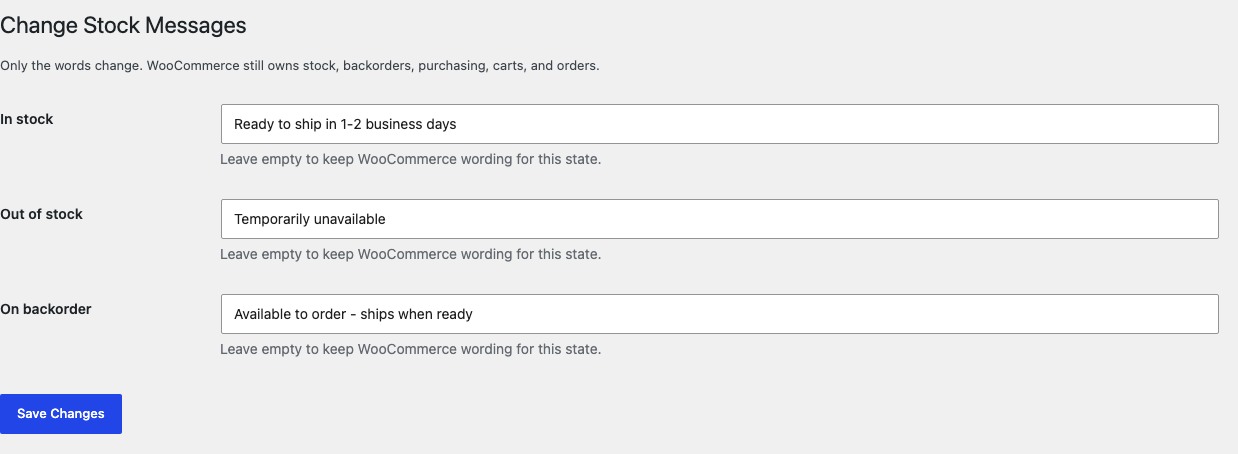
Each field accepts plain text up to 120 characters. Leave a field empty to preserve WooCommerce's original wording for that state. HTML, shortcodes, badges, icons, and links are not rendered from these fields.
Test the storefront
- Use a test product that WooCommerce currently reports as in stock.
- Open its product page and confirm the saved In stock wording appears.
- Change the test product to out of stock in WooCommerce, then confirm the Out of stock wording appears.
- Configure a valid WooCommerce backorder case and confirm the On backorder wording appears.
- Return each inventory setting to its original value.
- Confirm prices, quantity controls, purchasability, and cart behavior follow WooCommerce exactly as before.
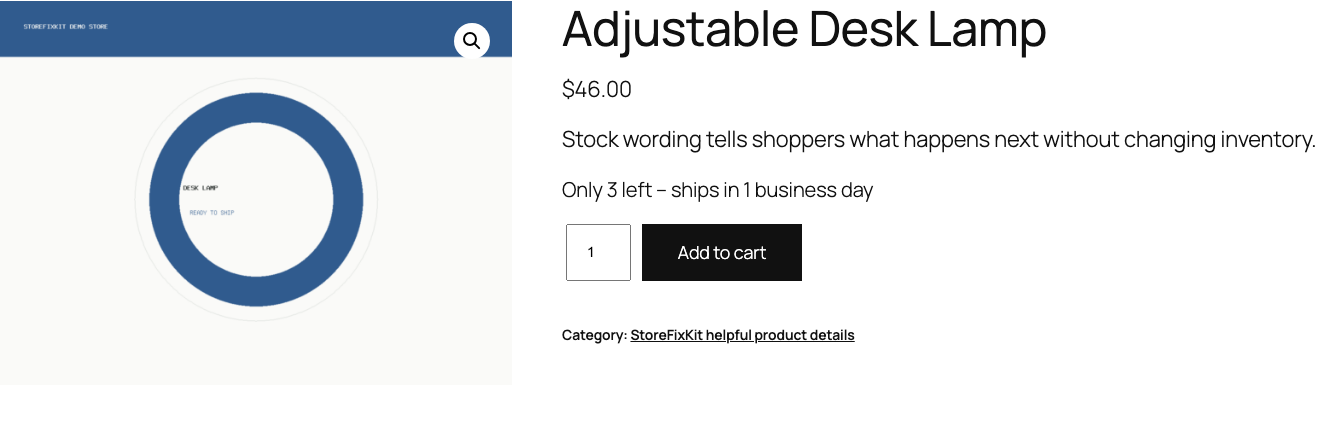
The plugin does not infer stock from the message. If the text says Only 3 left, that number is merchant-written copy and is not synchronized with inventory. Use wording that remains accurate for the store's real stock process.
Native-state boundary
This release supports only WooCommerce's existing in-stock, out-of-stock, and on-backorder decisions. It does not create labels such as Preorder, Discontinued, Made to order, or Ships from supplier as new inventory states.
You can use those phrases as display wording only when one of the three native WooCommerce states accurately owns the product. The saved text can never change the underlying decision.
Free and Pro
Free supplies one store-wide message for each native state. Pro adds a product-specific override and one reusable category message set.
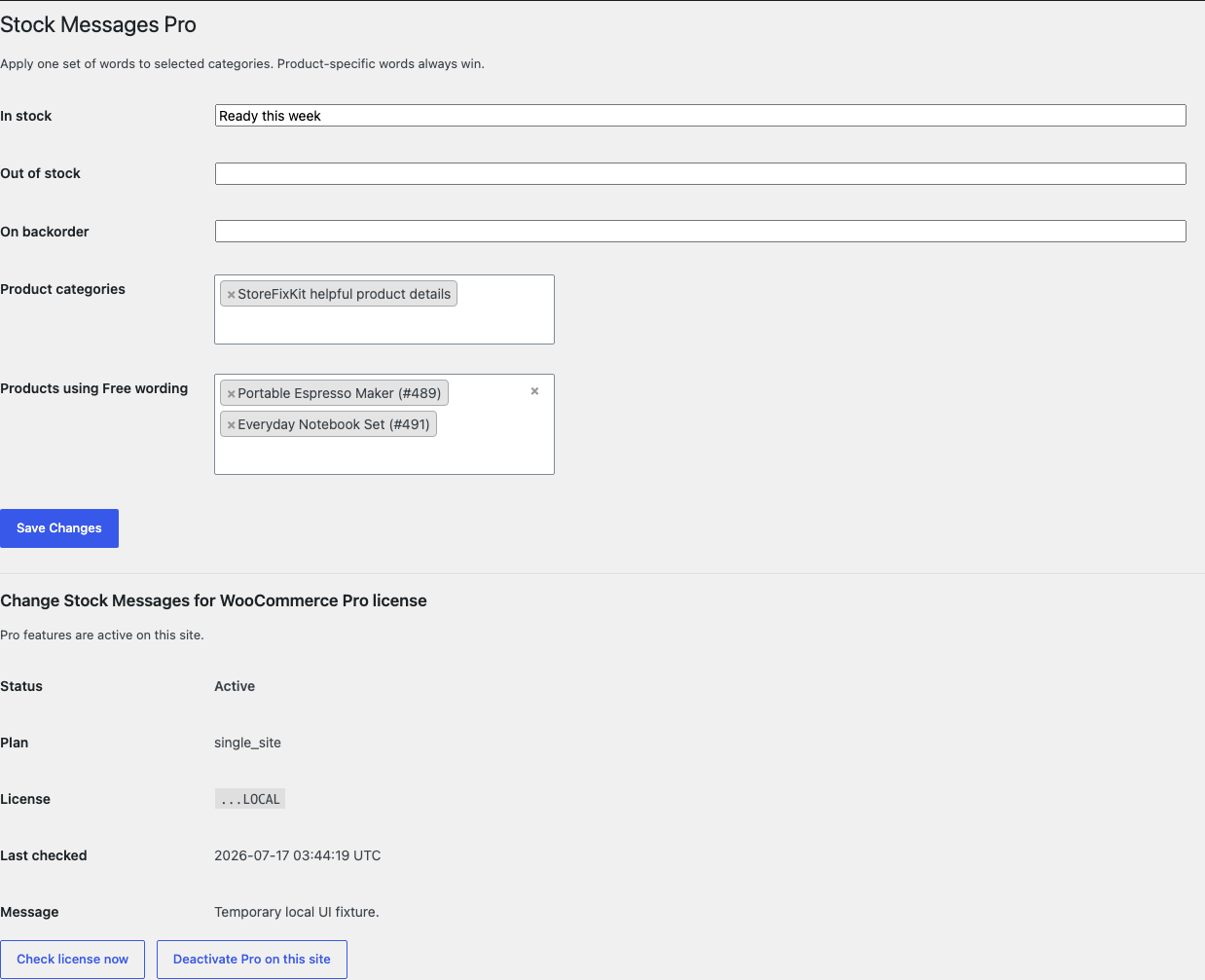
The precedence is simple:
- A nonempty product-specific Pro message wins for that product and state.
- A product exception or product category opt-out keeps the current Free store-wide message.
- Otherwise, a matching selected category uses the nonempty Pro category message.
- If the matching Pro field is empty, the current Free or WooCommerce message remains.
Pro does not change order emails, bundles, imports, translations, feeds, schema, shortcodes, badges, colors, icons, product positions, or stock quantities.
Start the 14-day Pro trial
- Open the product page.
- Select Start 14-day trial. No card is required to begin.
- Stripe returns to the StoreFixKit success page and the signed webhook creates a license bound to Stock Messages Pro.
- Copy the license key and download the Pro 0.1.1 ZIP.
- Add a payment method through Add payment method / manage billing before day 14 to continue the $39 annual subscription. Stripe cancels the subscription at trial end when no payment method has been added.
Install and activate Pro
- Keep WooCommerce and Free active.
- Upload and activate the Pro ZIP beside Free.
- Open WooCommerce > Stock Messages Pro.
- Paste the Stock Messages license key and select Activate Pro.
- Write the reusable category messages and select the categories that use them.
- Add products under Products using Free wording only when they should ignore the category set.
- To override one product, edit that product and enter one or more Pro stock messages.
- Save and test one product override, one category match, one exception, and one normal Free product.
Use Check license now to refresh status or Deactivate Pro on this site before moving the license. A failed license or network check cannot disable the three saved Free messages.
Safety and resource use
- No stock quantity, stock status, backorder, low-stock threshold, reservation, purchasability, price, cart, checkout, order, email, refund, or subscription mutation.
- No custom stock state, product scan, bulk write, template override, custom table, cron event, frontend JavaScript, frontend stylesheet, telemetry, customer cookie, or storefront remote request.
- Free reads one small WordPress option only when WooCommerce requests availability text.
- Product and category Pro settings are bounded and use the same three native states.
- An unknown state, invalid product, empty message, missing WooCommerce, inactive Pro, or unavailable license service returns the previous message unchanged.
Troubleshooting
The settings page is missing
Confirm WooCommerce and Free 0.1.1 are active, then open WooCommerce > Stock Messages. The current user must be able to manage WooCommerce.
The original WooCommerce wording still appears
Confirm the matching field is not empty and select Save changes. Clear product, page, object, and CDN caches. Then check whether the theme or block actually requests WooCommerce's native availability text. A hard-coded theme sentence is outside this display filter.
The wrong message appears
Check the product's real WooCommerce stock status and backorder configuration first. The plugin follows WooCommerce's decision. If Pro is active, inspect the product override, category assignment, product exception, and product opt-out in that order.
The message shows twice
Inspect whether a bundle, composite, theme, page builder, or another stock extension requests availability more than once or prints its own status. This plugin returns one sentence per native WooCommerce availability call and does not inject a second frontend block.
A quantity in the sentence becomes inaccurate
The field is static plain text. Replace a number such as Only 3 left with wording that does not promise a live quantity, or use a separate inventory-aware feature designed and tested for that job.
A custom status is needed
This plugin intentionally does not create custom inventory states. Choose a stock-management extension that owns state persistence, imports, order behavior, and compatibility if the business requires that broader workflow.
Rollback
- Back up the database and retain Free and Pro 0.1.1 plus the previous known-good ZIPs.
- Deactivate Pro and Free.
- Confirm WooCommerce immediately returns its original availability wording.
- Install the previous ZIPs.
- Activate Free first, then Pro.
- Confirm the Free messages, product overrides, category messages, and exceptions remain saved.
- Test all three native states plus one Pro exception.
The verified package-replacement drill preserves owned settings. Deactivation removes the text filters immediately and does not require stock, product, cart, or order repair.
Uninstall
Deleting Free removes only sfk_sm_messages. Deleting Pro removes _sfk_sm_instock, _sfk_sm_outofstock, _sfk_sm_onbackorder, _sfk_sm_category_opt_out, sfk_sm_category_defaults, and its license option.
Products, stock quantities, stock status, backorder rules, prices, carts, orders, customers, and unrelated options remain unchanged. The release drill verifies historical WooCommerce order data survives both uninstalls.
StoreFixKit Support
Use StoreFixKit Support and include the product ID, product type, real WooCommerce stock status, backorder setting, Free and Pro messages involved, Free and Pro versions, WooCommerce version, theme or block name, exact page URL, expected result, actual result, and screenshots. Remove customer data, credentials, payment details, and full license keys.