Free 0.1.5 and Pro 0.1.5 documentation.
Size Chart Image for WooCommerce does one job: it displays one existing WordPress Media Library image inside a native inline size-guide disclosure on a selected product. It does not build tables, calculate recommendations, open a popup, replace templates, or edit media attachments.
Requirements
| Component | Requirement |
|---|---|
| WordPress | 6.0 or newer |
| PHP | 7.4 or newer |
| WooCommerce | 8.0 or newer, active |
| Image | A valid local WordPress image attachment |
| Theme | A product template that exposes WooCommerce's product-summary hook |
| Access | A user who can edit WooCommerce products |
Prepare the chart image
Create a readable chart before configuring the plugin. Use clear unit labels, enough contrast, and text large enough for mobile viewing. Upload the final PNG, JPEG, or WebP through Media > Add New and write useful attachment alt text.
StoreFixKit does not upload, crop, regenerate, optimize, translate, or delete the image. WordPress remains the owner of the attachment and its responsive sizes.
Install the free plugin
- Install and activate WooCommerce.
- Install Size Chart Image for WooCommerce from WordPress.org after its directory listing is approved, or upload the supplied Free 0.1.5 ZIP for testing.
- Activate the plugin.
If WooCommerce is unavailable, the plugin registers no product editor or storefront chart behavior. WordPress continues loading and displays one admin notice.
Add a size chart to one product
- Open Products and edit the product.
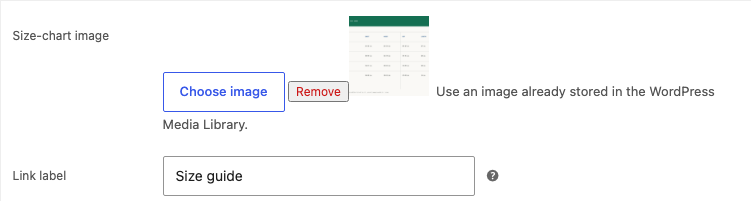
- In Product data > General, select Choose image beside Size-chart image.
- Choose an existing image from the WordPress Media Library.
- Keep or edit the Link label, such as
Size guide. - Select Update.
Verify desktop, mobile, and keyboard use
Open the public product page. Select the Size guide summary to expand the chart. Confirm the whole image fits the content width on desktop and a narrow mobile viewport.
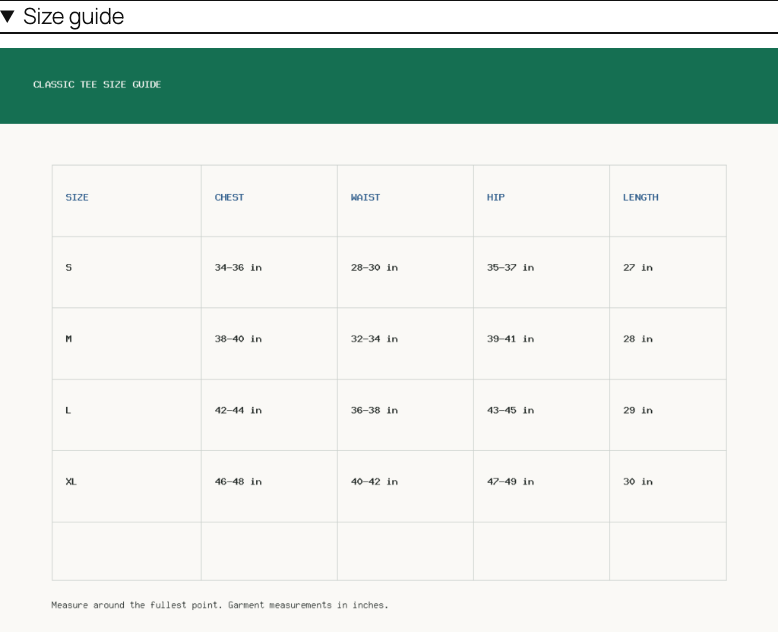
Use the Tab key to focus the summary and Enter or Space to open it. A screen reader receives the native summary control and the attachment alt text. If the attachment has no alt text, the escaped chart label is used as a fallback.
Free and Pro
Free assigns one image to each product. Pro stores one reusable chart, assigns it by category or tag, offers three documented placements, and supports explicit product exceptions.
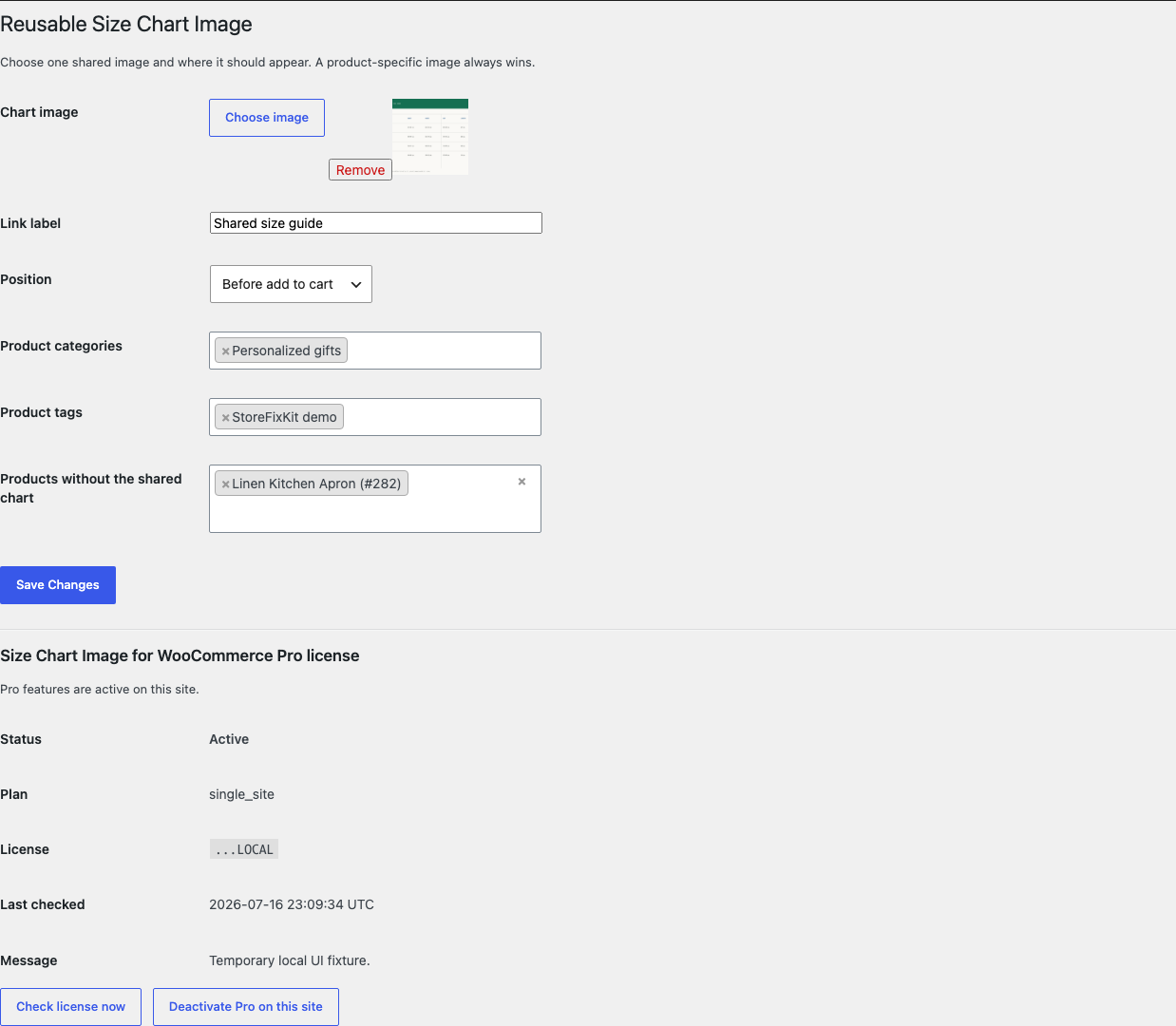
The available placements are After price, Before add to cart, and After product details. If the active template omits the selected public hook, the chart renders nothing. StoreFixKit does not override the template or search for theme-specific selectors.
Start the 14-day Pro trial
- Open the product page.
- Select Start 14-day trial. No card is required to begin.
- Stripe returns to the StoreFixKit success page and the signed webhook creates a license bound to Size Chart Image Pro.
- Copy the license key and download the Pro 0.1.5 ZIP.
- Add a payment method through Add payment method / manage billing before day 14 to continue the $39 annual subscription. Stripe cancels the subscription at trial end when no payment method has been added.
Install and activate Pro
- Keep WooCommerce and the Free plugin active.
- Upload and activate the Pro ZIP beside Free.
- Open WooCommerce > Reusable Size Chart.
- Paste the product license key and select Activate Pro.
- Choose the shared chart image and link label.
- Select one of the three placements.
- Choose only the categories or tags that need the chart and save.
Use Check license now to refresh status or Deactivate Pro on this site before moving the license. A network or license failure leaves valid product-specific Free charts working.
Safety and resource use
- Stores only a validated local attachment ID and a short plain-text label per product.
- Uses WordPress responsive image markup and the attachment's local derivatives.
- Never uploads, deletes, edits, crops, regenerates, or changes a media attachment.
- Never replaces the gallery, theme template, core tabs, search, price, stock, cart, checkout, or orders.
- Creates no modal, frontend JavaScript, custom table, cron event, telemetry, storefront write, or remote image request.
- A missing, private, malformed, deleted, or non-image attachment renders nothing.
Troubleshooting
The size guide is not visible
Confirm WooCommerce and Free are active, the product was updated, and the chosen Media Library item still exists and is an image. Clear page caches. Verify the product template exposes the standard WooCommerce product-summary hook.
The image is broken or missing
Open the attachment in Media Library and confirm WordPress can render it. Replace an invalid attachment with a normal local PNG, JPEG, or WebP. StoreFixKit deliberately renders nothing instead of outputting a broken or remote URL.
The shared chart appears on the wrong product
Check Pro category, tag, and exception selections. A product must match a selected category or tag and must not be listed as an exception. A valid product-specific Free image overrides the shared chart.
The placement does not appear in a custom template
Try another documented placement only after checking the real product page. A custom block or builder template may omit a classic WooCommerce hook. StoreFixKit will not inject by CSS selector or copy the template.
The chart is hard to read on mobile
The image scales to the available width, but the plugin cannot enlarge tiny text inside the bitmap. Replace the source with a chart designed for narrow screens and verify the attachment alt text.
Rollback
- Back up the database and retain Free and Pro 0.1.5 plus the previous known-good ZIPs.
- Deactivate Pro and Free.
- Install the previous ZIPs.
- Activate Free first, then Pro.
- Confirm product-specific and shared attachment IDs and labels remain saved.
- Test desktop, 390px mobile, keyboard opening, a shared match, an exception, and a missing image.
The verified 0.1.5 -> 0.1.4 -> 0.1.5 drill preserves owned settings. Rollback does not edit Media Library attachments, product galleries, templates, prices, stock, carts, or orders.
Uninstall
Deleting Free removes only _sfk_sci_attachment_id and _sfk_sci_label from products. Deleting Pro removes sfk_sci_global_charts and its license option. It does not delete or modify Media Library files, attachment metadata, products, categories, tags, galleries, orders, prices, or stock.
StoreFixKit Support
Use StoreFixKit Support and include the product ID, attachment ID, image format and dimensions, attachment alt text, selected placement, whether the chart is product-specific or shared, matching categories or tags, theme or product-template name, WooCommerce version, Free and Pro versions, desktop and mobile screenshots, expected result, and actual result. Remove credentials, customer data, private image URLs, and full license keys.