Free 0.1.3 and Pro 0.1.3 documentation.
Rename Product Tabs for WooCommerce changes only the visible names of WooCommerce's existing Description, Additional information, and Reviews tabs. It does not create tabs, remove tabs, move tabs, or edit their content.
Requirements
| Component | Requirement |
|---|---|
| WordPress | 6.2 or newer |
| PHP | 7.4 or newer |
| WooCommerce | 8.9 or newer, active |
| Product page | A surface that uses WooCommerce's native woocommerce_product_tabs filter |
Install and configure Free
- Install and activate WooCommerce.
- Install Rename Product Tabs for WooCommerce from WordPress.org after its directory listing is approved, or upload the supplied Free 0.1.3 ZIP.
- Open WooCommerce > Rename Product Tabs.
- Select Rename existing native WooCommerce tabs.
- Enter only the names you want to change. Leave a field empty to keep WooCommerce's wording.
- Select Save changes.
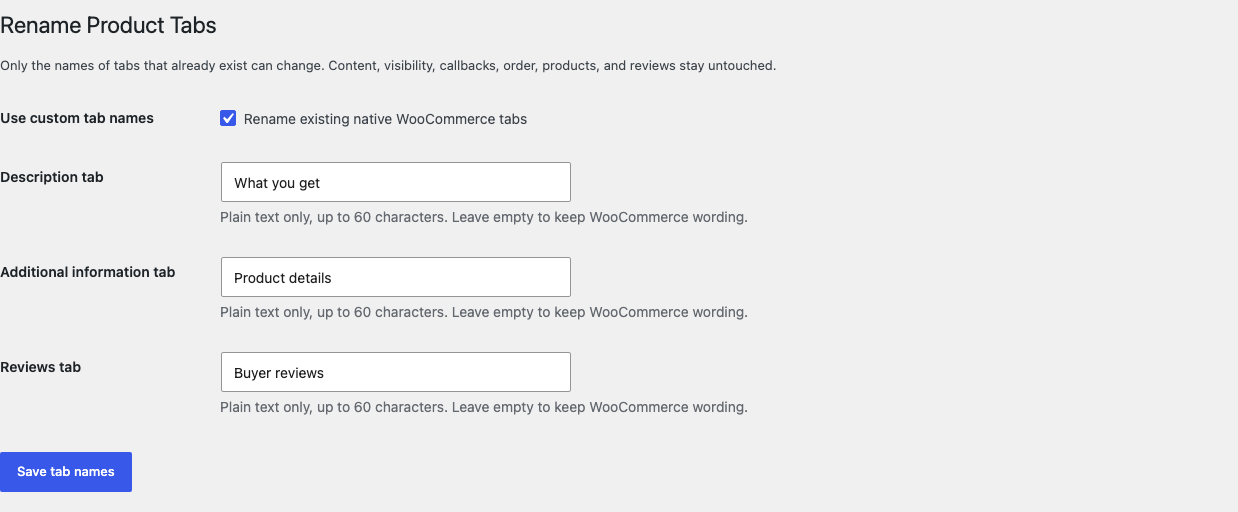
Check the product page
- Open a published product in a private browser window.
- Confirm that every tab you renamed uses the new words.
- Open each tab and confirm its content is unchanged.
- Confirm that tab order and any third-party tabs are unchanged.
- Test a product that has no attributes or reviews. StoreFixKit must not create a missing tab.

What Free changes
Free looks only for the existing native keys description, additional_information, and reviews. For a matching key with a valid saved label, it replaces only that tab's title value. It returns every callback, content value, priority, visibility decision, and unknown tab untouched.
If WooCommerce does not supply a tab, StoreFixKit does nothing. If a theme, builder, block, or quick-view system bypasses WooCommerce's native filter, StoreFixKit stays silent instead of patching the page with CSS or JavaScript.
Free and Pro precedence
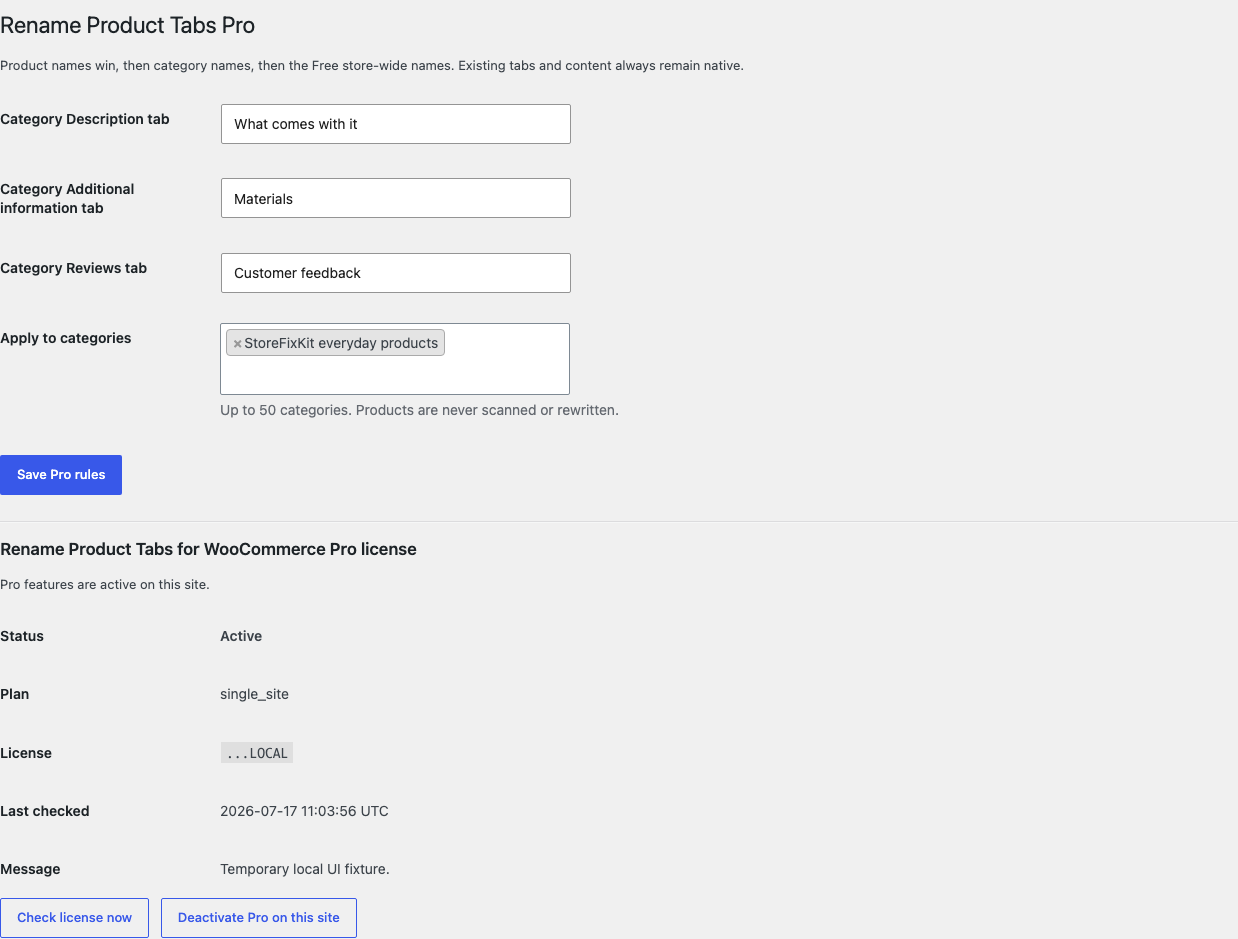
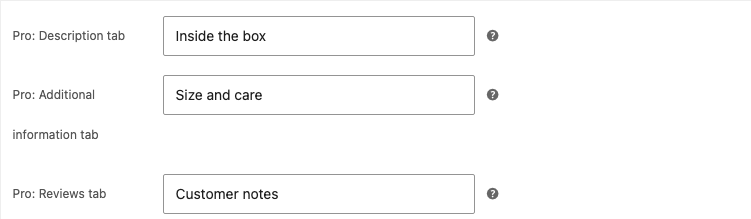
Free supplies complete store-wide names. Pro adds one bounded category rule and optional names on an individual product. The closest non-empty value wins:
- individual product name;
- matching selected-category name;
- Free store-wide name;
- WooCommerce's incoming native title.
No rule creates a missing tab or changes its content.
Start the 14-day Pro trial
- Open the Rename Product Tabs product page.
- Select Start 14-day trial. No card is required to begin.
- Stripe returns to the StoreFixKit success page; the signed webhook creates a product-bound single-site license.
- Copy the key and download the Pro 0.1.3 ZIP.
- Add a payment method before day 14 only if you want the $49/year subscription to continue. Without one, Stripe cancels it at trial end.
Keep WooCommerce and Free active. Upload and activate Pro, paste the key in its license panel, select Activate Pro, and then configure category or product names. If Pro, billing, or the license API is unavailable, the saved Free names keep working locally.
Privacy, security, and resource use
- Global writes require
manage_woocommerceand a WordPress nonce. - Product-level writes require permission to edit that product and a separate nonce.
- Labels are plain text limited to 60 characters and escaped on output.
- Storefront rendering creates no product, review, attribute, price, stock, cart, checkout, or order write.
- There is no custom table, cron job, catalog scan, telemetry, customer cookie, frontend CSS, frontend JavaScript, or public StoreFixKit request.
- No customer, order, review, or product content is sent to StoreFixKit.
Troubleshooting
A renamed tab still uses the old words
Confirm the setting is enabled and saved, clear page and object caches, and test a native WooCommerce single-product template. A theme, builder, block, quick-view panel, or tab plugin may print its own interface without applying WooCommerce's native product-tabs filter.
A tab is missing
StoreFixKit intentionally does not create tabs. WooCommerce may omit Additional information when a product has no visible attributes, or omit Reviews when reviews are disabled. Fix the underlying WooCommerce product setting rather than asking a rename plugin to invent content.
The wrong Pro words appear
Check the product field first, then its selected categories, then the Free store-wide field. Empty closer fields fall through. Confirm the license is active and that the product belongs to the category you selected.
A third-party tab changed
Free does not target unknown keys. Record the tab key/provider, active theme, tab plugin, cache state, and a before/after screenshot so support can identify which component owns the output.
Rollback
- Back up the database and both current ZIPs.
- Deactivate Pro, then Free.
- Install Free 0.1.2 and Pro 0.1.2.
- Activate Free first, then Pro.
- Open one product and verify titles, content, callbacks, order, and third-party tabs.
- To return to the current release, repeat the process with 0.1.3.
Versions 0.1.2 and 0.1.3 use the same bounded owned settings and require no schema migration. Rolling back does not change WooCommerce product or commerce data.
Uninstall
Deleting Free removes only sfk_rpt_settings. Deleting Pro removes only sfk_rpt_pro_rules, sfk_rpt_pro_license, and Pro-owned _sfk_rpt_labels metadata. Product titles, descriptions, attributes, reviews, tab content, callbacks, prices, stock, carts, orders, categories, and third-party tabs remain untouched.
StoreFixKit Support
Use StoreFixKit Support and include the product URL and ID, expected and actual tab words, which tabs exist, Free and Pro versions, WordPress and WooCommerce versions, theme/builder, tab-related plugins, cache/CDN state, and screenshots. Never send credentials, customer data, payment details, or a full license key.