Free 0.1.2 and Pro 0.1.2 documentation.
Rename Order Statuses changes only the visible words for existing native WooCommerce statuses. A label such as Processing can read Packing, while its key, orders, transitions, emails, stock actions, reports, and integrations remain unchanged.
Requirements
| Component | Requirement |
|---|---|
| WordPress | 6.2 or newer |
| PHP | 7.4 or newer |
| WooCommerce | 8.9 or newer, active |
| Free rule | One of seven native status labels |
| Pro plan | One site, $59/year after a 14-day trial |
Rename one status with Free
- Install and activate WooCommerce.
- Install Rename Order Statuses for WooCommerce from WordPress.org after its listing is approved, or upload the supplied Free 0.1.2 ZIP.
- Open WooCommerce > Rename Order Statuses.
- Choose Pending payment, Processing, On hold, Completed, Cancelled, Refunded, or Failed.
- Enter one plain-text label from 1 through 40 characters.
- Select Save.

Verify the order screen without changing an order
- Open WooCommerce > Orders.
- Find an existing order already using the selected native status.
- Confirm the new words appear in its status label.
- Do not change the order status merely to test the plugin.
- Clear the saved label or deactivate Free and confirm WooCommerce's native words return.


What Free changes
WooCommerce supplies an ordered array of status keys and visible labels. Free copies that array and replaces one value only when the configured key is one of seven allowlisted native keys and already exists in the incoming array.
Free never creates, registers, deletes, reorders, merges, maps, or transitions a status. It never queries or writes an order, HPOS record, email, stock action, payment, refund, report, webhook, integration, or customer message. Unknown and third-party statuses remain exactly as received.
What Pro adds
Pro can save up to seven native label mappings on one bounded settings screen. Empty fields keep the Free or native label. It also exports and imports only those seven mappings as local JSON.
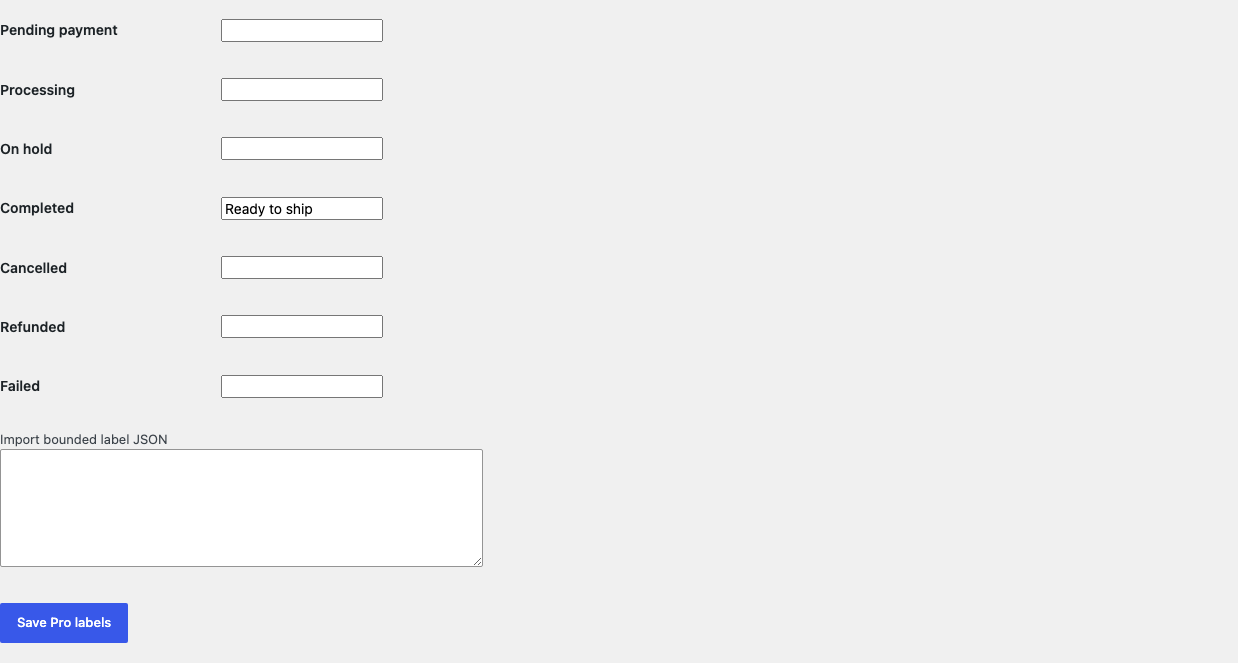
The JSON input is capped at 4,096 bytes, decoded locally, and reduced to the seven allowlisted keys with 40-character plain-text values. Invalid or oversized JSON becomes an empty Pro mapping instead of being executed, stored raw, or sent away.
Free remains authoritative. If Pro, Stripe, the network, or the StoreFixKit license API is unavailable, the valid Free single-label rename continues locally.
Start the 14-day Pro trial
- Open the Rename Order Statuses product page.
- Select Start 14-day trial. No card is required to begin.
- Stripe returns to StoreFixKit after checkout; a signed webhook creates a product-bound license.
- Copy the license key and download the Pro 0.1.2 ZIP.
- Keep Free active, upload and activate Pro, then activate its license.
- Add a payment method before day 14 only if you want the $59/year subscription to continue. Without one, Stripe cancels it at trial end.
Compatibility boundary
This release changes the values supplied through WooCommerce's native wc_order_statuses filter. Any screen, email, report, integration, or third-party plugin that reads that filtered label may show the new words; a surface that hard-codes text or reads another registry may not.
StoreFixKit does not promise to rename every copy of a word across themes, translations, email builders, PDFs, mobile apps, or remote services. It does not rewrite those systems to force consistency.
Privacy, security, and resource use
- Settings writes require
manage_woocommerceand WordPress's settings nonce. - Keys come from a fixed seven-item allowlist; labels are plain text capped at 40 characters.
- Import data is local, capped at 4,096 bytes, and never executed.
- The plugin reads no orders, customers, addresses, products, payment details, email contents, or HPOS rows.
- The storefront performs no StoreFixKit or third-party HTTP request and loads no plugin CSS or JavaScript.
- There is no order query, custom table, cron, Action Scheduler job, queue, telemetry, or runtime write.
Troubleshooting
The label did not change
Confirm the status and non-empty label are saved, then refresh WooCommerce > Orders. Clear object and page caches. If the native order list changes but another screen does not, that screen may use hard-coded or separately registered wording.
The wrong workflow ran after renaming
The plugin cannot trigger a transition. Check the order's underlying native key, automation plugins, email rules, payment gateway callbacks, and stock settings. A new label does not turn Processing into Completed or change what either status means.
A third-party status is missing
StoreFixKit neither creates nor removes third-party keys. Deactivate both StoreFixKit plugins and check the provider that owns that status. Include the exact key, not customer or order data, when contacting support.
An email or PDF still shows the original words
That renderer may not use wc_order_statuses. StoreFixKit does not edit email templates, translations, PDFs, or remote integrations. Confirm the native WooCommerce order list first to isolate ownership.
JSON import cleared Pro labels
Confirm the input is valid JSON under 4,096 bytes with a top-level mappings object and only the seven documented keys. Export the current settings before importing. Invalid or oversized input fails closed to an empty Pro mapping.
Rollback and uninstall
- Export or record the visible labels and keep the 0.1.2 and previous deterministic ZIPs.
- Deactivate Pro and confirm the Free label remains.
- Deactivate Free and confirm all native WooCommerce words return immediately.
- Install the previous Free ZIP, then the matching Pro ZIP if needed.
- Verify the order list without changing an order, then restore 0.1.2.
The verified release drill installed a synthetic 0.0.1 baseline, updated to 0.1.2, downgraded, rolled forward, deactivated, and exercised both uninstall modes while preserving WooCommerce product and order data.
Normal uninstall preserves Free settings, Pro settings, and the license for accidental recovery. Define STOREFIXKIT_DELETE_DATA as true before deletion only when you deliberately want Free to remove sfk_ros_settings and Pro to remove sfk_ros_pro_settings plus its license option. Orders, statuses, HPOS rows, emails, stock, products, customers, reports, and third-party data are never deleted.
StoreFixKit Support
Use StoreFixKit Support and include the native status key, expected and actual words, affected screen or integration, Free and Pro versions, WordPress and WooCommerce versions, HPOS state, theme or email/PDF plugin, cache status, and redacted screenshots. Never send customer names, addresses, order contents, credentials, API keys, payment details, or a complete license key.
For feedback, state the label you expected, where it appeared correctly, where it did not, and the shortest repeatable steps. After resolution, support will provide the correct WordPress.org review link once the official listing exists.