Free 0.1.1 and Pro 0.1.1 documentation.
Product Documents for WooCommerce does one job: it adds approved WordPress Media Library files to the native WooCommerce product summary. It does not make files private, upload files outside WordPress, change download permissions, edit a theme, add files to orders or emails, or delete customer media.
Requirements
| Component | Requirement |
|---|---|
| WordPress | 6.2 or newer |
| PHP | 7.4 or newer |
| WooCommerce | 8.9 or newer, active |
| File | An existing valid WordPress Media Library attachment |
| Access | A user who can edit WooCommerce products |
Install the free plugin
- Install and activate WooCommerce.
- Install Product Documents for WooCommerce from WordPress.org after its directory listing is approved, or upload the supplied Free 0.1.1 ZIP for testing.
- Activate the plugin.
If WooCommerce is unavailable, the plugin registers no product field and no storefront output. WordPress continues loading and shows one admin notice.
Add one document to a product
- Open Products and edit the product.
- In Product data > General, find Product document.
- Select Choose document.
- Choose a file already stored in the WordPress Media Library.
- Keep or edit the Link label.
- Select Update.

The label is plain text and is limited to 80 characters. When the label is empty, the attachment title is used. When that is also empty, the translated Product document fallback is used.
Check the product page
- Open the product page in a private browser window.
- Find Product documents in the normal product summary near the buying controls.
- Select the link and confirm the expected Media Library file opens.
- Return to the product editor, remove the document reference, and update the product.
- Confirm the Product documents section disappears without changing the product or Media Library file.
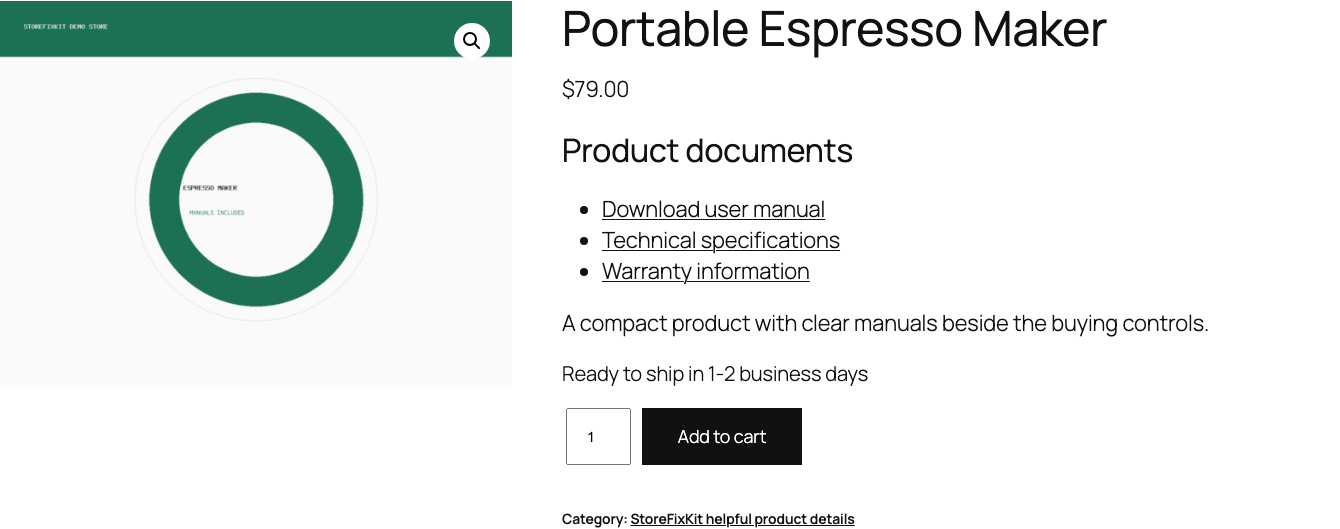
The link uses the attachment URL supplied by WordPress. The plugin does not guess a server path, proxy the file, or copy it into another folder.
Public-file boundary
A normal WordPress Media Library URL is generally public to anyone who knows it. This plugin does not create signed, expiring, purchased-only, role-gated, or legally protected downloads.
Do not use this release for confidential manuals, customer-specific files, invoices, licensed software, medical records, or any file that requires access control. Those jobs need a dedicated protected-download system and a separate security review.
Missing and deleted files
When the saved ID is missing, malformed, no longer an attachment, or has no valid attachment URL, the plugin renders nothing. It does not redirect to the product, expose a filesystem path, search for a similar file, or write a replacement value during the storefront request.
That fail-passive behavior is intentional. A broken reference should remove one link, not break a product page.
Free and Pro
Free adds one file to one product. Pro can add up to 20 additional files to an explicitly edited product and can reuse one document set across selected product categories.

The order is deliberately understandable:
- The single Free product document appears first.
- Additional Pro documents saved on that product appear next.
- Reusable category documents appear last when the product belongs to a selected category.
- Duplicate attachment IDs are shown once.
- A product exception or Do not add the reusable category documents keeps category documents off that product.
Pro never accepts arbitrary external URLs, creates order attachments, modifies My Account, changes email, imports files, scans file contents, or deletes Media Library records.
Start the 14-day Pro trial
- Open the product page.
- Select Start 14-day trial. No card is required to begin.
- Stripe returns to the StoreFixKit success page and the signed webhook creates a license bound to Product Documents Pro.
- Copy the license key and download the Pro 0.1.1 ZIP.
- Add a payment method through Add payment method / manage billing before day 14 to continue the $39 annual subscription. Stripe cancels the subscription at trial end when no payment method has been added.
Install and activate Pro
- Keep WooCommerce and Free active.
- Upload and activate the Pro ZIP beside Free.
- Open WooCommerce > Product Documents Pro.
- Paste the Product Documents license key and select Activate Pro.
- Choose reusable documents and the categories that should receive them.
- Add product exceptions only where the shared set should not appear.
- To add product-specific extra files, edit that product and use Pro: Additional documents.
- Save and test one matching product, one nonmatching product, and every exception.
Use Check license now to refresh status or Deactivate Pro on this site before moving the license. A failed license or network check cannot remove the valid single Free document.
Safety and resource use
- No file creation, upload, copy, move, rename, permission change, content inspection, or deletion.
- No product, price, stock, cart, checkout, order, email, invoice, account, refund, or subscription mutation.
- No template override, product tab, shortcode, custom table, cron event, frontend JavaScript, frontend stylesheet, telemetry, customer cookie, or storefront remote request.
- Free reads one product reference and validates one attachment only on a product page.
- Pro is bounded to 20 unique document references and at most 500 selected category or exception IDs.
- Invalid state returns no document output; WooCommerce and the product page continue normally.
Troubleshooting
The Product document field is missing
Confirm WooCommerce and Free 0.1.1 are active and open Product data > General. The current user must be allowed to edit products. A custom product editor that removes WooCommerce's normal General panel is outside this release boundary.
The link does not appear
Confirm the product was updated after choosing the file. Open the attachment in Media > Library and verify it still exists and has a public URL. Clear page, object, and CDN caches. A custom product template that removes woocommerce_single_product_summary also removes the public placement point; this plugin does not inject theme selectors to force it back.
Clicking the link reloads the product page
Open the saved attachment directly from the Media Library. If WordPress itself returns the product URL or an empty URL, repair the attachment record or permalink owner first. The plugin deliberately uses the URL WordPress supplies and does not guess a file path.
The same file appears twice
Free, product-specific Pro, and category Pro references are deduplicated by attachment ID. Clear caches and confirm both installed plugins are 0.1.1. Two different attachment records that point to similar files are still different Media Library items.
Category documents do not appear
Confirm the Pro license is active, the product belongs to a selected category, and it is not listed under Products without reusable documents. Edit the product and confirm Do not add the reusable category documents is not selected.
A file must be private
Do not rely on this plugin. Remove the public link and use a protected-download product designed for authentication, authorization, expiry, and audit requirements.
Rollback
- Back up the database and retain Free and Pro 0.1.1 plus the previous known-good ZIPs.
- Deactivate Pro and Free.
- Confirm the product page remains usable and only the document section is absent.
- Install the previous ZIPs.
- Activate Free first, then Pro.
- Confirm the Free document, additional product documents, category set, and exceptions remain saved.
- Test one valid attachment, one deleted attachment, a category match, and an exception.
The verified package-replacement drill preserves owned references. Deactivation removes output immediately and never requires a product, order, or Media Library repair.
Uninstall
Deleting Free removes only _sfk_pd_attachment_id and _sfk_pd_label. Deleting Pro removes _sfk_pd_documents, _sfk_pd_category_opt_out, sfk_pd_category_defaults, and its license option.
Media Library attachments, physical files, products, prices, stock, carts, orders, customers, and unrelated options remain unchanged. The release drill specifically verifies that a referenced attachment and historical WooCommerce order survive both uninstalls.
StoreFixKit Support
Use StoreFixKit Support and include the product ID, attachment ID, attachment type, exact product URL, Free and Pro versions, WooCommerce version, theme name, cache/CDN details, expected result, actual result, and screenshots. Remove customer data, credentials, private files, payment details, and full license keys.