Mark recently published WooCommerce products with one small plain-text label. Product dates, prices, sale state, stock, visibility, carts, and orders remain unchanged.
Requirements
- WordPress 6.2 or newer
- PHP 7.4 or newer
- WooCommerce 8.9 or newer
- Free 0.1.4 for one store-wide label and day window
- Pro 0.1.4 only for category and product day rules
Install Free
- Back up the site and keep the current plugin ZIP.
- Open Plugins > Add New > Upload Plugin.
- Upload
storefixkit-new-product-badge-0.1.4.zip. - Activate New Product Badge for WooCommerce.
- Open WooCommerce > New Badge.
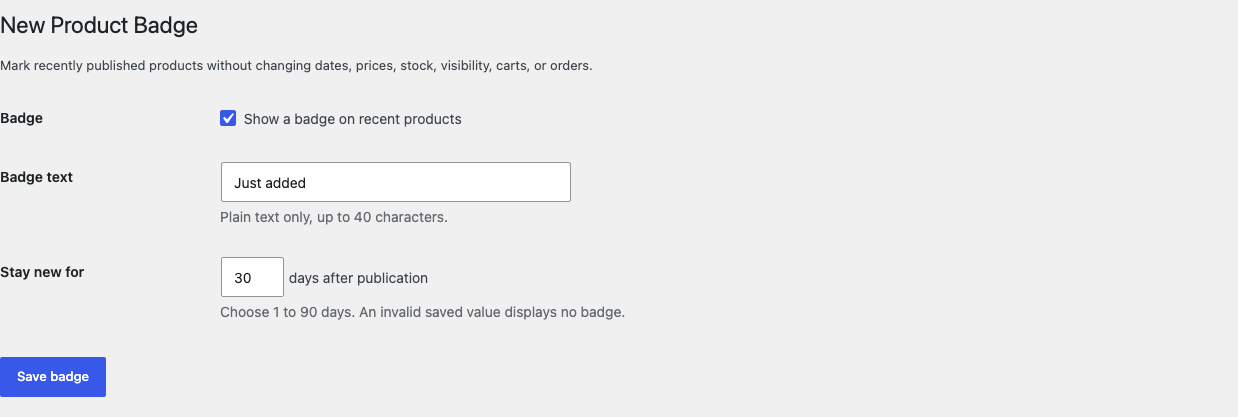
Set the Free badge
- Enable Show a badge on recent products.
- Enter a short Badge text, such as
NeworJust added. - Enter Stay new for from 1 to 90 days.
- Select Save badge.
- Test one recently published product and one older product.
How the date decision works
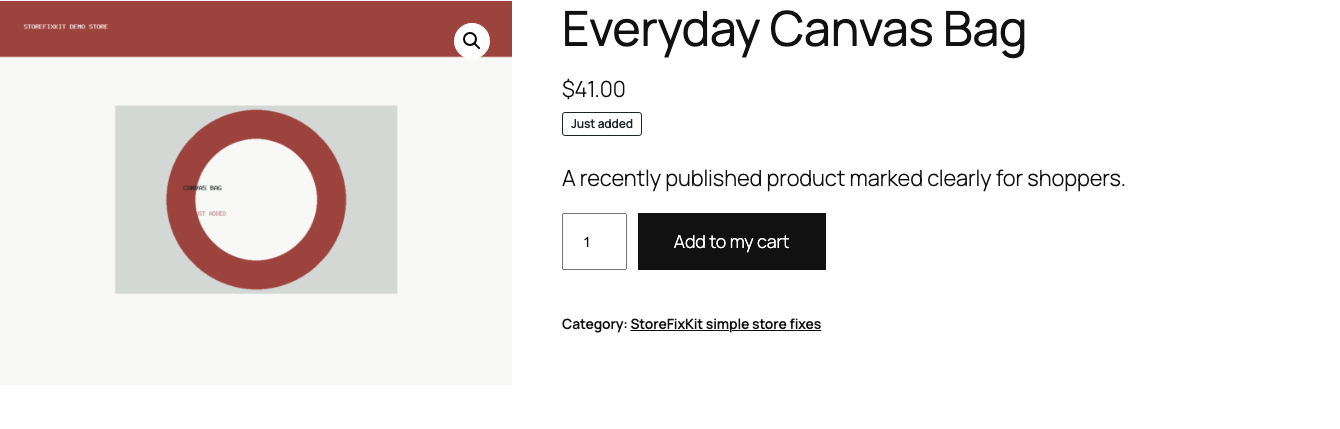
The plugin reads the already loaded published product and its existing publication timestamp. It renders one label only when:
- the setting is enabled;
- the product is published;
- the saved label is valid and no longer than 40 characters;
- the saved day window is between 1 and 90;
- the publication timestamp is not in the future;
- the product age is inside the selected window.
It renders nothing for a draft, scheduled product, future date, malformed timestamp, invalid day window, expired product, missing WooCommerce, or missing product object.
The plugin does not change the publication date, schedule a daily task, query the catalog, write during a storefront request, or create a product flag.
Free and Pro precedence
Free always remains usable without an account, checkout, trial, license, or StoreFixKit connection.
With an active Pro license:
- Never show New badge on a product wins over every broader rule.
- A valid individual product day window wins next.
- A valid matching category day window is next.
- The Free store-wide day window is the fallback.
- Invalid or unavailable state renders no badge.
The visible badge text always comes from the Free setting in this release. Pro changes where and for how long the same label appears.

Start and activate Pro
- Open the New Product Badge product page.
- Select Start 14-day trial. No card is required to begin.
- Stripe returns to the StoreFixKit success page.
- The signed webhook creates a New Product Badge license and makes the Pro 0.1.4 ZIP available.
- Upload and activate Pro beside Free.
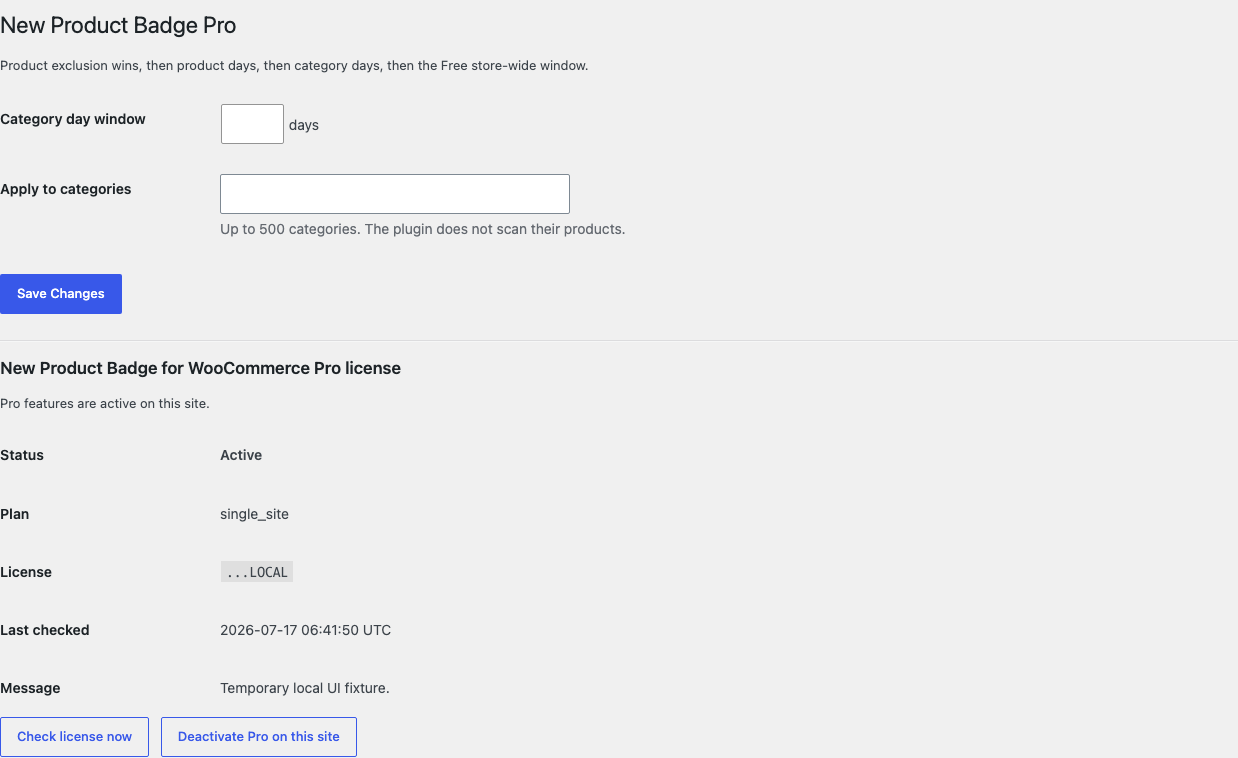
- Open WooCommerce > New Badge Pro.
- Paste the product-bound license and select Activate Pro.
- Choose a category day window and categories, then save.
- Edit an individual product only when it needs its own day window or exclusion.
Stripe cancels the trial at its end when no payment method has been added. A billing, network, or license outage cannot turn off Free's saved label and day window.
Hook and theme boundary
The badge is rendered on WooCommerce's documented native shop-loop and single-product hooks. A custom card, builder, REST-rendered list, headless storefront, feed, email, quick view, or template that omits those hooks may not show it.
StoreFixKit does not force placement with JavaScript, DOM selectors, copied templates, or a catalog scan. A custom surface needs its own tested integration.
Troubleshooting
No product shows the badge
Confirm the setting is enabled, the label is not empty, the day window is 1 to 90, and the product is published. Check its publication date and site timezone. Clear page, object, and CDN caches.
A new product is treated as expired
Compare the WordPress publication timestamp, site timezone, and current WordPress time. The plugin reads the saved publication date and does not use the modified date or import date.
A scheduled product has a badge
This release requires published status. Confirm the visible page is not cached from another state and that the theme passes the current published product to the native hook.
A Product Collection block has no badge
Confirm that the block preserves the native WooCommerce loop hook used by the plugin. Some block or builder renderers own their card markup and bypass that hook.
The wrong Pro day window applies
Check product exclusion, individual product days, category days, then Free days in that order. Clear a closer value when the broader window should apply.
Rollback
- Keep the 0.1.4 and previous known-good ZIPs.
- Deactivate Pro and Free.
- Confirm every StoreFixKit New badge disappears while products remain unchanged.
- Install and activate the previous Free ZIP.
- Install and activate the matching previous Pro ZIP only if needed.
- Confirm the Free switch, label, day window, Pro category rule, product day values, and exclusions remain.
- Test a recent product, expired product, future-dated product, Pro category match, product override, and exclusion.
The verified 0.1.3 to 0.1.4 update and 0.1.4 to 0.1.3 downgrade preserved owned settings and historical order data.
Uninstall ownership
Deleting Free removes only sfk_npb_settings.
Deleting Pro removes only:
sfk_npb_pro_rules;_sfk_npb_days;_sfk_npb_exclude;- the New Product Badge Pro license option.
Products, publication and modified dates, sale schedules, prices, stock, images, categories, visibility, carts, customers, historical orders, themes, templates, and unrelated options remain unchanged.
StoreFixKit Support
Use StoreFixKit Support and include the product ID, exact URL, product status, publication timestamp, WordPress timezone and current time, Free label and days, matching Pro category, product override or exclusion, Free and Pro versions, WooCommerce version, theme/block name, cache/CDN details, expected result, actual result, and screenshots. Remove customer data, credentials, payment information, and the full license key.