Free 0.1.3 and Pro 0.1.3 documentation.
Set Related Products Count controls how many related products WooCommerce requests on native single-product pages and how many columns the section uses. WooCommerce still chooses the related products and their order. Pro adds up to twenty-five category-specific display choices.
Requirements
| Component | Requirement |
|---|---|
| WordPress | 6.2 or newer |
| PHP | 7.4 or newer |
| WooCommerce | 8.9 or newer, active |
| Free rule | One global count from 1 to 12 and columns from 1 to 6 |
| Pro plan | One site, $39/year after a 14-day no-card trial |
Install Free
- Confirm WooCommerce is active.
- In WordPress, open Plugins > Add New > Upload Plugin.
- Upload the Free 0.1.3 ZIP, select Install Now, and then select Activate.
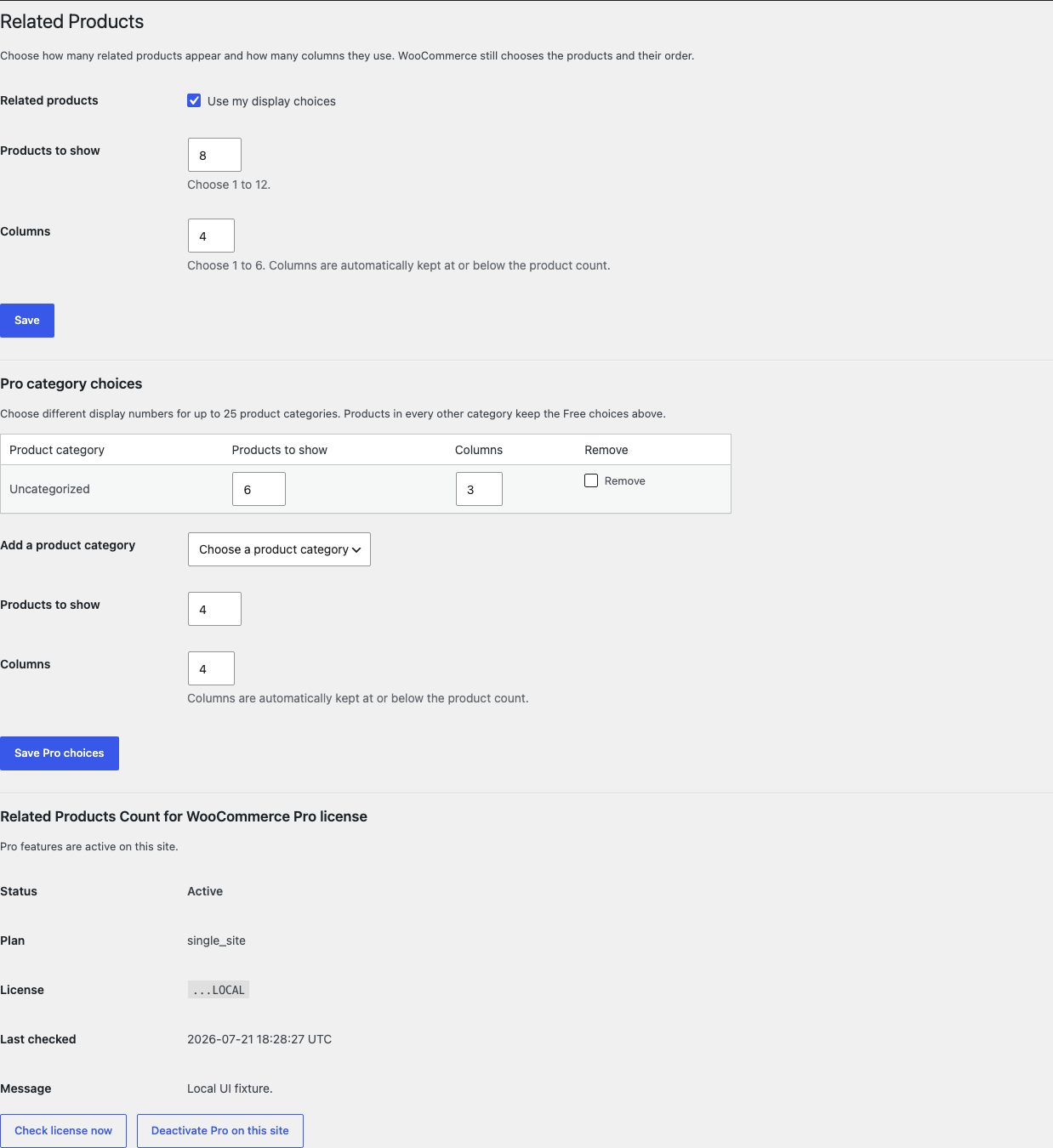
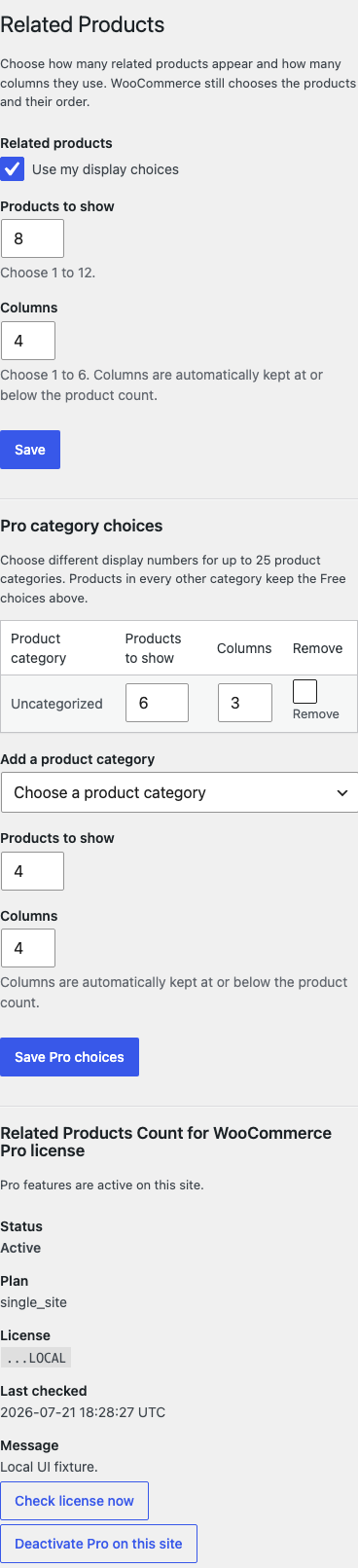
- Open WooCommerce > Related Products.
- Select Use my display choices.
- Enter Products to show from 1 to 12.
- Enter Columns from 1 to 6. Columns are automatically kept at or below the product count.
- Select Save.
Verify the result
- Open a published product that already has products WooCommerce can treat as related.
- Find the native Related products section.
- Count the products requested by the section.
- Confirm the column value does not exceed the number of products.
- Open a second product to confirm the global choice is consistent.
- Turn off Use my display choices and confirm the theme or WooCommerce native values return.
WooCommerce can return fewer items than requested when there are not enough eligible related products. This plugin controls the request size and columns, not the recommendation pool.
What Free changes
Free changes only posts_per_page and columns in WooCommerce's native related-products arguments. It accepts 1 to 12 products and 1 to 6 columns, and it automatically keeps columns at or below the selected product count.
Every other WooCommerce argument remains unchanged. The plugin does not choose product IDs, create product links, alter sorting, write product data, or replace templates.
What Pro adds
Pro lets you add up to twenty-five product-category choices.
- Keep Free active.
- Install and activate the matching Pro 0.1.3 ZIP.
- Activate the product license.
- Open WooCommerce > Related Products.
- Under Pro category choices, select Add a product category.
- Choose Products to show and Columns.
- Select Save Pro choices.
Saved rows show the product-category name, count, columns, and a Remove checkbox. Products outside a valid saved category keep the Free global values. When a product belongs to several saved categories, the plugin uses the first valid category ID in WooCommerce's current product data. If Pro or its license is unavailable, the global Free choices continue locally.
Native output and builder boundary
This release supports the native WooCommerce single-product related section that uses woocommerce_output_related_products_args.
Product blocks, page builders, shortcodes, widgets, custom related-product plugins, and themes that replace the related section may use another query or layout. They remain unchanged by design. The plugin adds no CSS, slider, breakpoint editor, template override, recommendation algorithm, upsell rule, or cross-sell rule.
Troubleshooting
Fewer products appear than the saved count
WooCommerce may not have enough eligible related products for that product. Confirm other published products share suitable product categories or tags. The plugin does not manufacture recommendations or force unrelated items into the section.
The columns look different from the saved value
Confirm the page uses the native related section. A theme or builder can apply its own CSS grid or replace the section entirely. This plugin changes the WooCommerce argument, not the theme's CSS.
The related section is missing
Turn off the plugin and check again. The section may be disabled by the theme, hidden by another plugin, or empty because WooCommerce found no eligible products. This plugin does not create the section.
A category-specific value does not apply
Confirm Free and Pro 0.1.3 are active, the license is active, and the product belongs directly to the saved category. Remove and re-add the category rule if the category was deleted and recreated.
A builder grid did not change
That is expected. Builder and block queries are outside this product's supported surface.
Roll back safely
- Back up the WordPress database and keep the exact Free and Pro ZIPs you installed.
- Deactivate Pro and confirm the global Free values still apply.
- Turn off Use my display choices or deactivate Free.
- Confirm the native count and columns return on a standard product page.
- To return to an earlier version, install the previous deterministic ZIP, activate it, and repeat the verification steps.
No product, category, relationship, template, order, or customer data is migrated or rewritten. Disabling the plugin stops its two argument changes on the next request.
Uninstall and data removal
Normal uninstall preserves StoreFixKit settings and the license for accidental recovery.
Define STOREFIXKIT_DELETE_DATA as true before deletion only when you deliberately want to remove this product's owned settings. Free removes sfk_rpcn_settings; Pro removes sfk_rpcn_pro_settings and its own license option. Products, categories, tags, relationships, orders, customers, and templates are never deleted.
Privacy, security, and resource use
- Settings changes require the
manage_woocommercecapability and WordPress nonce checks. - Counts are bounded to 1–12 and columns to 1–6.
- Pro stores at most twenty-five category choices.
- The product-page path reads owned settings and makes no remote request.
- No personal data, product text, or visitor behavior is sent to StoreFixKit.
- No custom table, cron event, queue, telemetry, frontend JavaScript, or stylesheet is added.
Frequently asked questions
Does this choose which related products appear?
No. WooCommerce still chooses the products and their order. This plugin changes only count and columns.
Can I make a related-products slider?
No. The plugin does not add CSS, JavaScript, carousel behavior, or responsive breakpoints.
Why can WooCommerce show fewer than my selected number?
The selected number is a maximum request. The actual result depends on the related products WooCommerce can find.
Can Pro set a different number for one product?
No. Pro uses product-category choices only, with a maximum of twenty-five saved categories.
Support and feedback
Use StoreFixKit Support. Include the affected product URL, expected and actual item count, expected and actual columns, whether the page uses the native section or a builder, product categories, theme, Free and Pro versions, WordPress and WooCommerce versions, and redacted desktop/mobile screenshots.
Do not send administrator passwords, API keys, customer or order data, payment details, unpublished product content, or a complete license key. For feedback, describe the shortest repeatable product/category setup and say whether native values return after deactivation.