Free 0.1.5 and Pro 0.1.5 documentation.
One Extra Product Tab for WooCommerce does one job: it adds one optional title and safe-content panel to a product through WooCommerce's native tab filter. It does not remove or rename existing tabs, replace templates, change product queries, or touch cart, checkout, orders, prices, or stock.
Requirements
| Component | Requirement |
|---|---|
| WordPress | 6.0 or newer |
| PHP | 7.4 or newer |
| WooCommerce | 8.0 or newer, active |
| Theme | A product template that renders WooCommerce's native product tabs |
| Access | A user who can edit WooCommerce products |
Install the free plugin
- Install and activate WooCommerce.
- Install One Extra Product Tab for WooCommerce from WordPress.org after its directory listing is approved, or upload the supplied Free 0.1.5 ZIP for testing.
- Activate the plugin.
If WooCommerce is unavailable, the plugin registers no product editor or storefront tab behavior. WordPress continues loading and displays one admin notice.
Add one tab to a product
- Open Products and edit the product.
- In Product data > General, write an Extra tab title, such as
Care,Ingredients,Shipping, orSpecifications. - Write the Extra tab content.
- Select Update.

The tab stays hidden until both the title and content contain valid saved values. Content accepts the safe HTML WordPress normally allows in post content; the title remains plain text.
Verify the storefront tab
Open the public product page. The extra title should appear beside the product's existing Description, Additional information, Reviews, and third-party tabs. Select it and verify the saved content.

If the reserved StoreFixKit tab key is already occupied, the plugin returns the original tab list unchanged. It never overwrites another plugin's entry.
Free and Pro
Free adds one product-specific tab. Pro creates one reusable shared tab, assigns it by category or tag, lets you choose a display priority from 1 to 999, and supports explicit product exceptions.
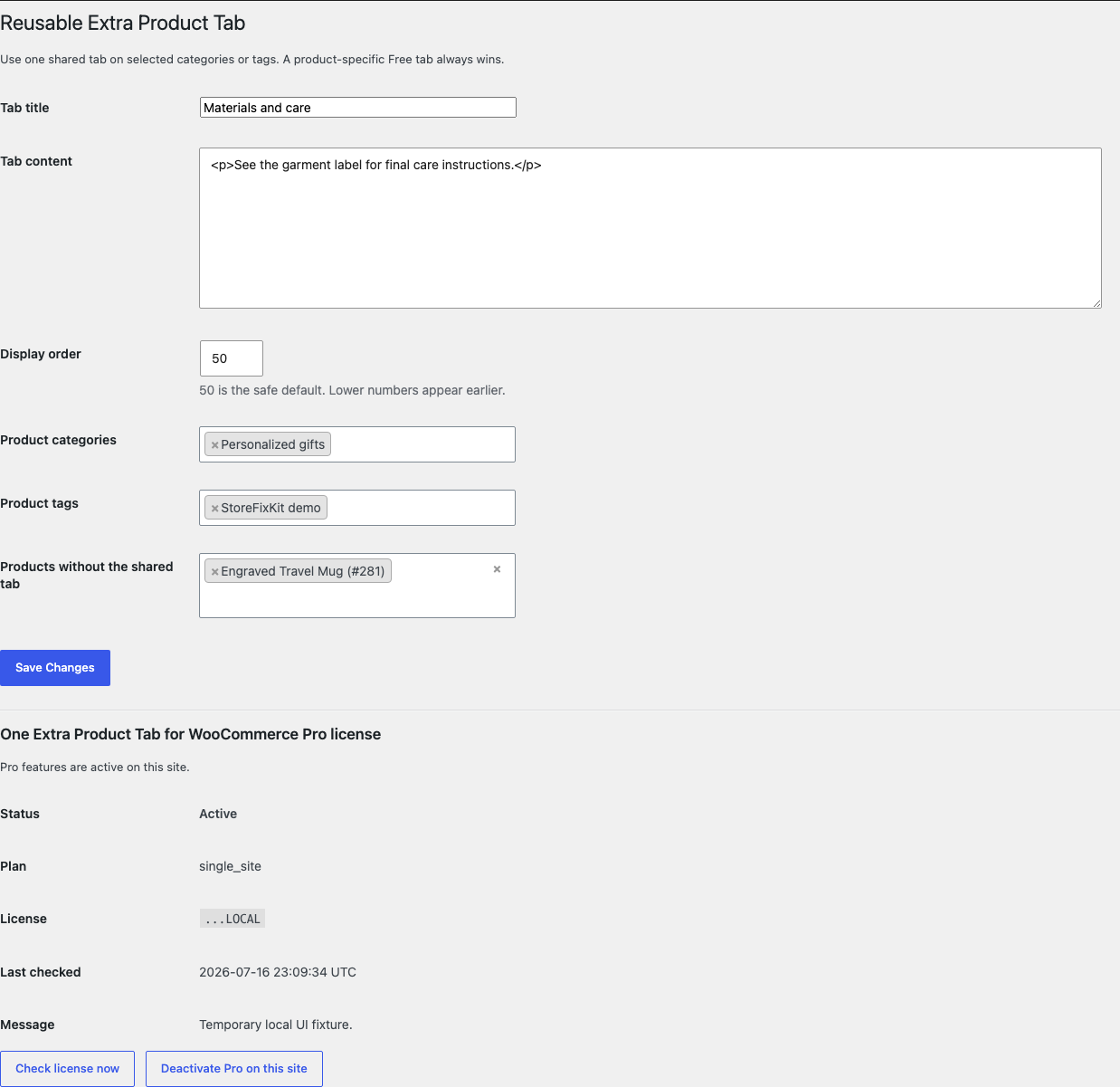
Lower priority numbers normally appear earlier in WooCommerce's tab ordering. The safe default is 50. Pro does not remove, rename, replace, or reorder an existing tab entry.
Start the 14-day Pro trial
- Open the product page.
- Select Start 14-day trial. No card is required to begin.
- Stripe returns to the StoreFixKit success page and the signed webhook creates a license bound to One Extra Product Tab Pro.
- Copy the license key and download the Pro 0.1.5 ZIP.
- Add a payment method through Add payment method / manage billing before day 14 to continue the $39 annual subscription. Stripe cancels the subscription at trial end when no payment method has been added.
Install and activate Pro
- Keep WooCommerce and the Free plugin active.
- Upload and activate the Pro ZIP beside Free.
- Open WooCommerce > Extra Product Tab.
- Paste the product license key and select Activate Pro.
- Write the shared title and content.
- Keep display order at 50 unless you have a specific reason to move it.
- Choose the categories or tags that need the tab and save.
Use Check license now to refresh status or Deactivate Pro on this site before moving the license. A network or license failure leaves valid per-product Free tabs working.
Safety and resource use
- Adds at most one
sfk_extra_informationentry to the in-memory native tab array. - Preserves every existing array entry and returns the original array on uncertainty or conflict.
- Never changes product search, archives, indexing, REST output, descriptions, reviews, templates, cart, checkout, orders, prices, or stock.
- Creates no custom table, cron event, frontend asset, public remote request, telemetry, or storefront write.
- Free stores two bounded product meta values. Pro stores one bounded shared-tab option and its license state.
Troubleshooting
The tab is not visible
Confirm both title and content were saved and are not empty after sanitization. Clear product-page caches. Verify the theme's product template still renders WooCommerce's native tabs. A custom template that omits the tabs filter is outside this plugin's safe injection boundary.
The tab is visible but empty
Reopen the product and confirm content was saved. Remove unsupported markup and test plain paragraphs. If Pro is active, remember that a valid product-specific Free tab wins over the shared assignment.
The shared Pro tab appears on the wrong product
Check category, tag, and explicit exception selections. A product needs to match a selected category or tag and must not be listed as an exception. Test one product at a time after clearing object and page caches.
The order looks unexpected
Check the saved Pro display order. Lower numbers usually appear earlier. StoreFixKit does not rewrite the priorities supplied by WooCommerce or other extensions; it controls only its own entry.
Rollback
- Back up the database and retain Free and Pro 0.1.5 plus the previous known-good ZIPs.
- Deactivate Pro and Free.
- Install the previous ZIPs.
- Activate Free first, then Pro.
- Confirm product-specific and shared settings remain saved.
- Open one product-specific tab, one shared tab, one exception, and the existing Reviews tab.
The verified 0.1.5 -> 0.1.4 -> 0.1.5 drill preserves owned settings and leaves existing WooCommerce tabs and product content unchanged.
Uninstall
Deleting Free removes only _sfk_oet_title and _sfk_oet_content from products. Deleting Pro removes sfk_oet_global_tabs and its license option. Product descriptions, excerpts, attributes, reviews, revisions, templates, categories, tags, orders, prices, and stock remain intact.
StoreFixKit Support
Use StoreFixKit Support and include the product ID, theme name, page-builder or product-template name, saved title, whether the tab is product-specific or shared, matching categories or tags, display order, WooCommerce version, Free and Pro versions, expected result, actual result, and screenshots. Remove credentials, private product content, customer data, and full license keys.