Free 0.1.1 and Pro 0.1.1 documentation.
Minimum Order Amount for WooCommerce does one job: it prevents a non-empty cart from proceeding while its discounted product subtotal is below one saved amount. It does not add a fee, change a product price, edit an order, reserve stock, alter shipping, or choose a payment method.
Requirements
| Component | Requirement |
|---|---|
| WordPress | 6.0 or newer |
| PHP | 7.4 or newer |
| WooCommerce | 8.0 or newer, active |
| Cart and checkout | Classic shortcodes or WooCommerce Cart and Checkout Blocks |
| Access | A user who can manage WooCommerce |
Install the free plugin
- Install and activate WooCommerce.
- Install Minimum Order Amount for WooCommerce from WordPress.org after its directory listing is approved, or upload the supplied Free 0.1.1 ZIP for testing.
- Activate the plugin.
- Open WooCommerce > Minimum Order.
If WooCommerce is unavailable, the plugin registers no cart or checkout rule. WordPress continues loading and displays one admin notice.
Set one store-wide minimum
- Open WooCommerce > Minimum Order.
- Select Require this minimum before checkout.
- Enter the Minimum product subtotal in the store currency.
- Keep or edit the Shopper message.
- Select Save changes.
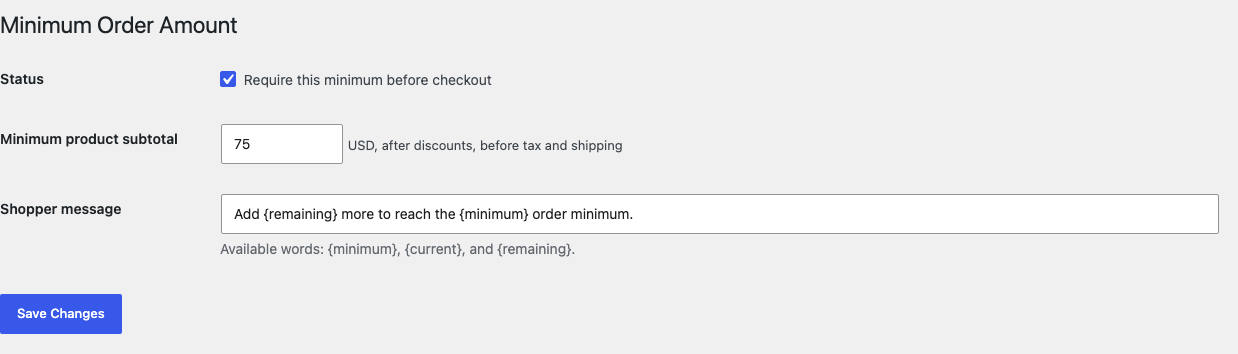
The message can include {minimum}, {current}, and {remaining}. The plugin replaces those words with WooCommerce-formatted currency amounts. The saved message is plain text and is limited to 160 characters.
Understand what is counted
The comparison uses the cart's discounted product subtotal before tax and shipping. Coupon discounts therefore reduce the counted amount. Shipping charges, tax, payment fees, donations, and unrelated order adjustments do not help the cart reach the minimum.
For example, if products total $140 and a coupon removes $25, the counted subtotal is $115. With a $125 minimum, the message should say that $10 remains.
An empty cart is never blocked. A missing, zero, negative, malformed, or disabled amount also produces no restriction.
Test cart and checkout
- Add a product whose discounted line subtotal is below the saved minimum.
- Open the cart. Confirm the message shows the correct minimum, current subtotal, and remaining amount.
- Try checkout. Confirm WooCommerce keeps the shopper on the cart or checkout flow without creating an order.
- Increase the product quantity until the product subtotal reaches the minimum.
- Confirm the notice disappears and checkout works normally.
- Repeat once with a coupon and once without it.
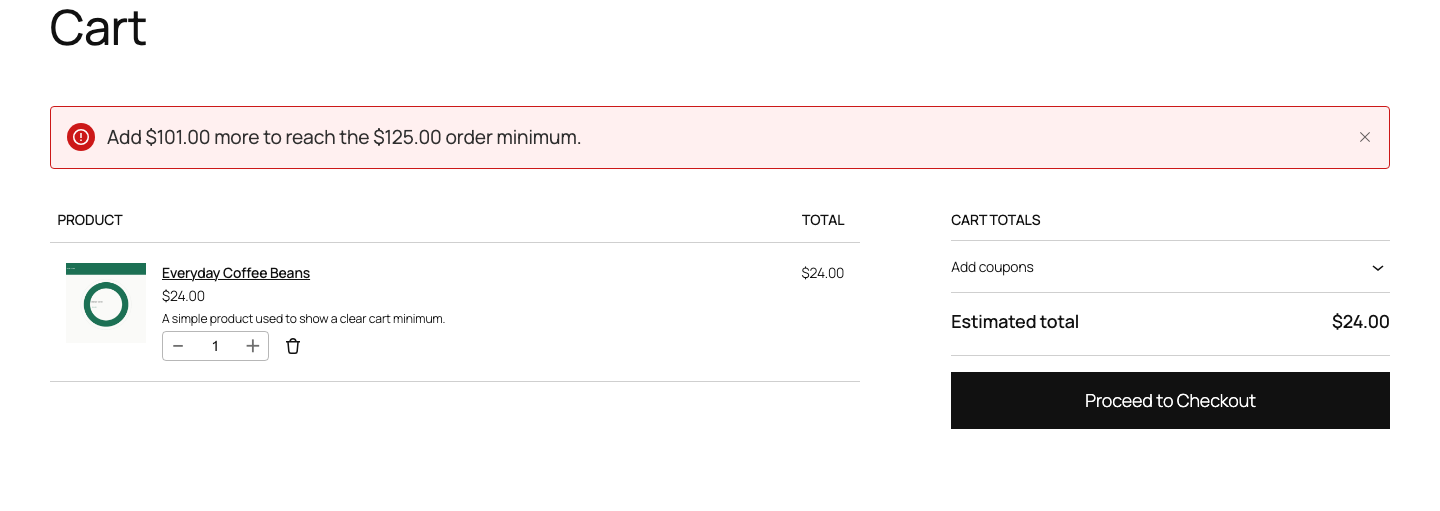
Test the same cases on the cart and checkout pages actually used by the store. Free validates classic WooCommerce flows and the public Store API used by Cart and Checkout Blocks.
Free and Pro
Free applies one store-wide minimum. Pro can replace that amount when an eligible product from a chosen category is in the cart. It can also exclude selected products from the subtotal and prevent selected products from triggering the category rule.
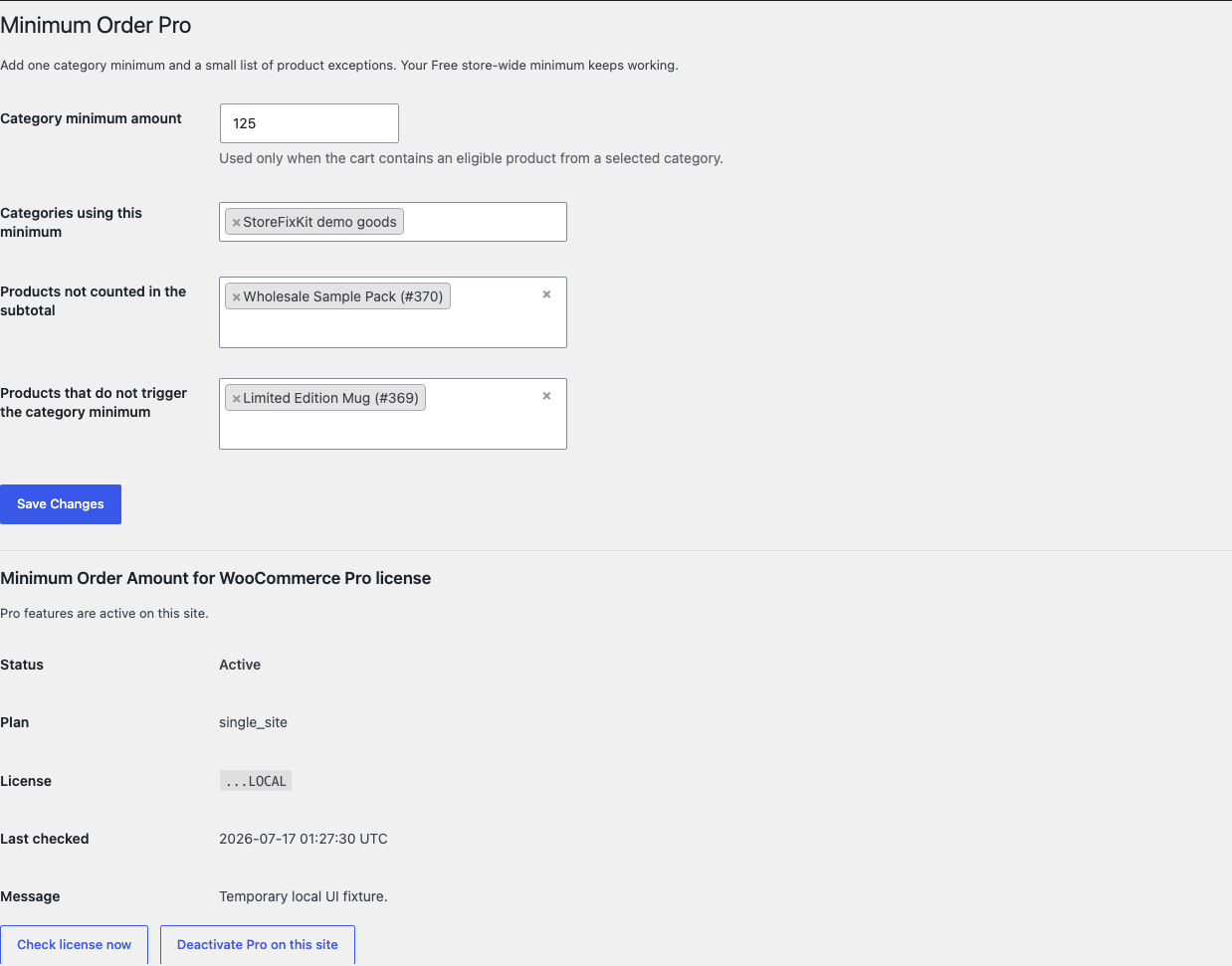
The rule order is deliberately simple:
- Free supplies the store-wide amount.
- If a non-exempt cart item belongs to a selected category, Pro uses the category amount instead.
- Products in Products not counted in the subtotal have their discounted line totals subtracted from the comparison.
- Products in Products that do not trigger the category minimum cannot activate the category amount, but the Free store-wide amount may still apply.
Pro does not combine several category amounts, calculate a maximum, or create one rule per customer role. Those are separate jobs with a larger testing surface.
Start the 14-day Pro trial
- Open the product page.
- Select Start 14-day trial. No card is required to begin.
- Stripe returns to the StoreFixKit success page and the signed webhook creates a license bound to Minimum Order Amount Pro.
- Copy the license key and download the Pro 0.1.1 ZIP.
- Add a payment method through Add payment method / manage billing before day 14 to continue the $39 annual subscription. Stripe cancels the subscription at trial end when no payment method has been added.
Install and activate Pro
- Keep WooCommerce and Free active.
- Upload and activate the Pro ZIP beside Free.
- Open WooCommerce > Minimum Order Pro.
- Paste the product license key and select Activate Pro.
- Enter one category minimum and choose the categories that use it.
- Add subtotal exclusions or trigger exceptions only when needed.
- Save and test one matching cart, one non-matching cart, and every exception.
Use Check license now to refresh status or Deactivate Pro on this site before moving the license. A failed license or network check cannot disable the saved Free store-wide minimum.
Safety and resource use
- No price, product, stock, tax, shipping, coupon, payment, order, refund, or subscription mutation.
- No custom database table, cron event, frontend JavaScript, frontend stylesheet, telemetry, customer cookie, or storefront remote request.
- Free stores one bounded WordPress option. Pro stores one bounded rule option and its license state.
- Validation reads the cart that WooCommerce has already loaded and writes no cart or order data.
- Invalid configuration fails passively and returns WooCommerce's normal flow unchanged.
Troubleshooting
The notice does not appear
Confirm WooCommerce and Free 0.1.1 are active, the rule is enabled, the amount is greater than zero, and the cart is not empty. Check the discounted product subtotal rather than the order total. Clear page and object caches, then test the canonical cart page.
The amount looks lower than expected
Coupons reduce the counted product subtotal. Shipping and tax are intentionally not counted. If Pro is active, check Products not counted in the subtotal for the cart items involved.
The category amount does not apply
Confirm the Pro license is active, at least one category is selected, and a non-exempt product in the cart belongs to that category. A product in Products that do not trigger the category minimum leaves the Free store-wide amount in place.
Checkout Blocks behave differently
Update WooCommerce, confirm the actual page uses the official Cart or Checkout Block, and repeat the below-limit and exact-limit tests. A custom checkout that bypasses WooCommerce's cart validation is outside this release boundary.
An empty cart shows a minimum notice
Free 0.1.1 explicitly skips empty carts. Confirm the installed version, clear all caches, and check whether another extension is producing the message.
Rollback
- Back up the database and retain Free and Pro 0.1.1 plus the previous known-good ZIPs.
- Deactivate Pro and Free.
- Install the previous ZIPs.
- Activate Free first, then Pro.
- Confirm the Free amount, message, category rule, and exceptions remain saved.
- Test an empty cart, a below-minimum cart, an exact-minimum cart, and a coupon-adjusted cart.
The verified package-replacement drill preserves the owned settings. Deactivation immediately removes the validation hooks and does not need a cart, product, or order repair.
Uninstall
Deleting Free removes only sfk_moa_settings. Deleting Pro removes sfk_moa_pro_rules and its license option. Products, coupons, carts, orders, prices, stock, tax, shipping, and unrelated options remain unchanged.
StoreFixKit Support
Use StoreFixKit Support and include the saved minimum, store currency, coupon used, cart product subtotal, Free and Pro versions, WooCommerce version, cart type (Classic or Block), expected result, actual result, and screenshots. Remove customer data, credentials, payment details, and full license keys.