Free 0.1.1 and Pro 0.1.1 documentation.
Maximum Quantity per Product for WooCommerce does one job: it limits how many units of a selected product or variation can be in one cart. It does not change stock, reserve inventory, alter an order, set a minimum quantity, force a multiple, or limit a customer's lifetime purchases.
Requirements
| Component | Requirement |
|---|---|
| WordPress | 6.0 or newer |
| PHP | 7.4 or newer |
| WooCommerce | 8.0 or newer, active |
| Products | Simple or variable WooCommerce products |
| Cart | Classic cart or WooCommerce Store API cart |
| Access | A user who can edit WooCommerce products |
Install the free plugin
- Install and activate WooCommerce.
- Install Maximum Quantity per Product for WooCommerce from WordPress.org after its directory listing is approved, or upload the supplied Free 0.1.1 ZIP for testing.
- Activate the plugin.
If WooCommerce is unavailable, the plugin registers no product editor or cart behavior. WordPress continues loading and displays one admin notice.
Set a maximum on one product
- Open Products and edit the product.
- In Product data > Inventory, find Maximum quantity per cart.
- Enter a whole number from 1 to 1,000,000.
- Select Update.
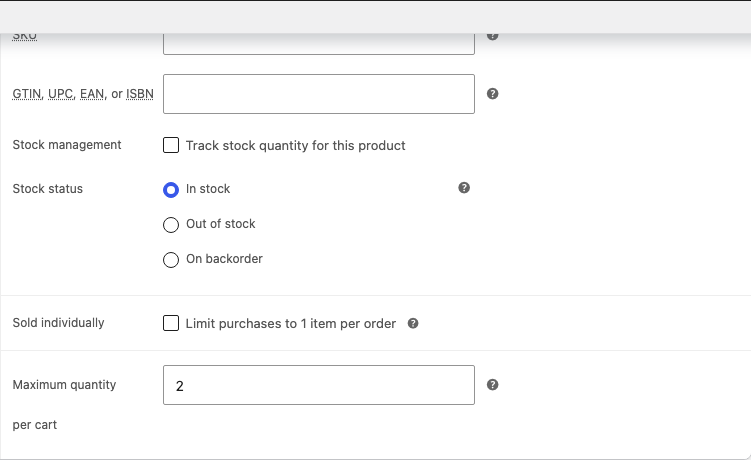
Leave the field empty or enter zero to remove the rule. Decimal, negative, malformed, and excessively large values are normalized to a safe bounded setting or removed.
For a variable product, an explicit variation value is used first. If the selected variation has no value, the parent product value can apply.
Test the shopper workflow
- Open the product page in a private browser window.
- Confirm the native quantity input does not allow a value above the saved maximum.
- Add the maximum quantity to the cart.
- Try adding one more unit of the same product or variation.
- Confirm the new request is refused and the existing cart remains unchanged.
- Open the cart, try changing the line above the maximum, and confirm WooCommerce keeps the previous valid quantity.
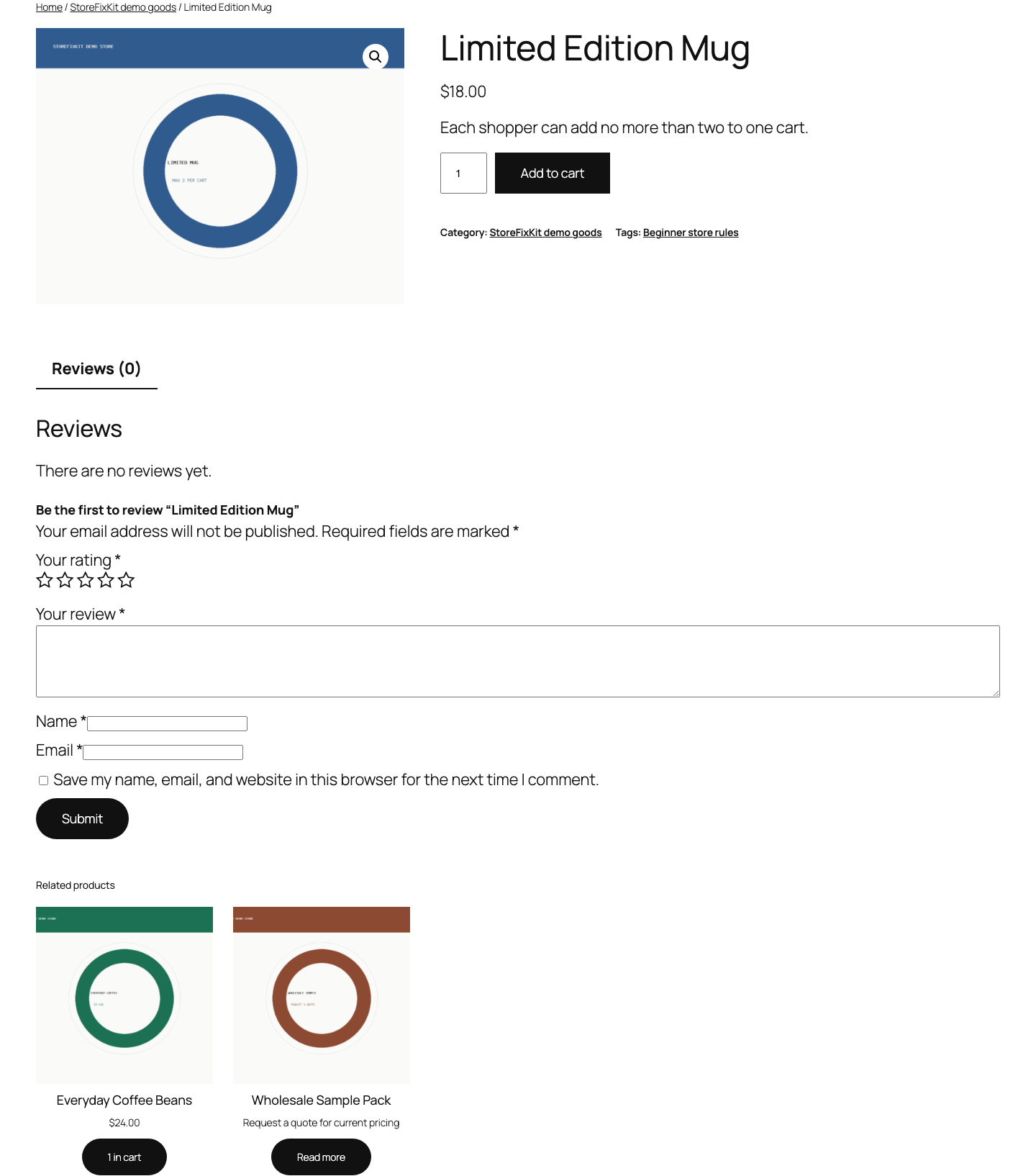
The server adds together matching quantities already in the cart. Separate cart lines for the same purchasable variation cannot be used to bypass the limit.
Stock and other stricter limits
The plugin never increases a quantity maximum supplied by WooCommerce stock management or another stricter rule. If stock permits 3 and this plugin permits 5, the shopper sees 3. If stock permits 20 and this plugin permits 5, the shopper sees 5.
The saved value is a per-cart limit, not an inventory count. Buying the product in a previous order does not reduce the current cart allowance.
Free and Pro
Free stores one explicit maximum on each configured product. Pro reuses one maximum across selected categories or tags, supports explicit product exceptions, and can use one different maximum for one customer role.
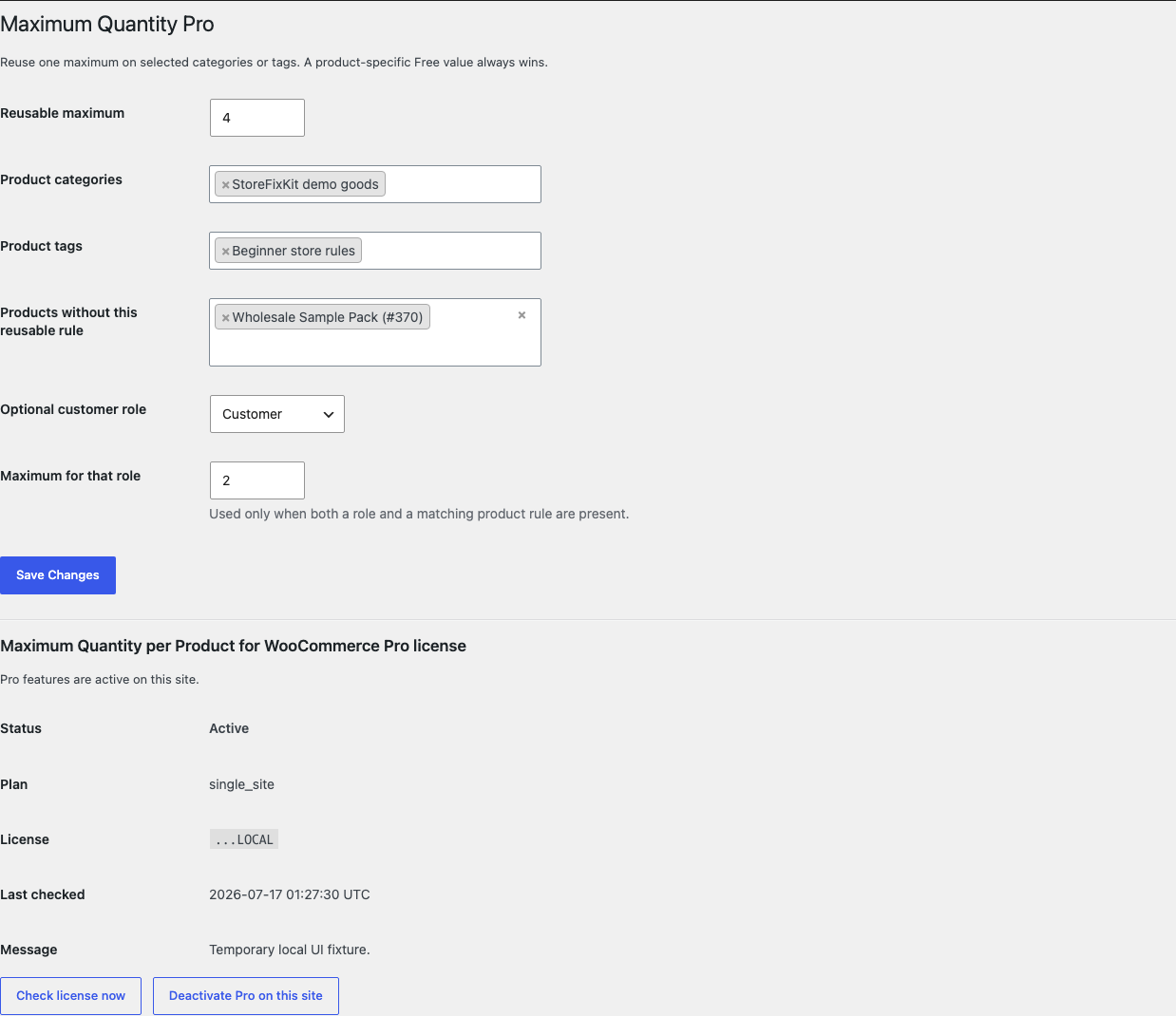
The priority is deliberate:
- A product-specific Free value always wins.
- An exception receives no Pro reusable value.
- Otherwise, a category or tag match receives the reusable Pro maximum.
- If the current customer has the one selected role and a positive role maximum is saved, that role maximum replaces the reusable value.
Pro does not set order totals, minimum quantities, quantity steps, package multiples, date limits, or lifetime customer limits.
Start the 14-day Pro trial
- Open the product page.
- Select Start 14-day trial. No card is required to begin.
- Stripe returns to the StoreFixKit success page and the signed webhook creates a license bound to Maximum Quantity Pro.
- Copy the license key and download the Pro 0.1.1 ZIP.
- Add a payment method through Add payment method / manage billing before day 14 to continue the $49 annual subscription. Stripe cancels the subscription at trial end when no payment method has been added.
Install and activate Pro
- Keep WooCommerce and Free active.
- Upload and activate the Pro ZIP beside Free.
- Open WooCommerce > Maximum Quantity Pro.
- Paste the product license key and select Activate Pro.
- Enter one reusable maximum and select at least one category or tag.
- Add product exceptions only where the shared rule should not apply.
- Optionally choose one customer role and its maximum.
- Save and test a matching product, an exception, an explicit Free product, a guest, and the selected role.
Use Check license now to refresh status or Deactivate Pro on this site before moving the license. A failed license or network check cannot disable product-specific Free limits.
Safety and resource use
- No stock, backorder, price, total, coupon, tax, shipping, payment, order, refund, or subscription mutation.
- No custom table, cron event, frontend JavaScript, frontend stylesheet, telemetry, customer cookie, or storefront remote request.
- Free stores one bounded product metadata key. Pro stores one bounded rule option and its license state.
- Rejected additions and updates leave the existing cart unchanged.
- Missing or malformed configuration returns WooCommerce's original quantity rules unchanged.
Troubleshooting
The field is not visible
Confirm WooCommerce and Free 0.1.1 are active, then open Product data > Inventory. The current user must be allowed to edit products. A custom product editor that omits WooCommerce's Inventory panel is outside this release boundary.
A shopper can type a larger number
Browser controls are only a convenience. Repeat the attempt and confirm server validation refuses the oversized add or cart update. Clear product and page caches if the input maximum is stale.
The maximum is lower than the saved value
Check WooCommerce stock and backorder settings plus other quantity extensions. This plugin preserves an existing stricter maximum and never raises it.
A variable product uses the parent value
That is expected when the chosen variation has no explicit maximum. Set a value on the variation when it needs a different rule.
The Pro rule does not apply
Confirm the license is active, a category or tag is selected, and the product is not an exception. Then check whether the product already has a Free value, because that explicit value wins.
Rollback
- Back up the database and retain Free and Pro 0.1.1 plus the previous known-good ZIPs.
- Deactivate Pro and Free.
- Install the previous ZIPs.
- Activate Free first, then Pro.
- Confirm product values, reusable assignments, exceptions, and the role override remain saved.
- Test a valid maximum, one oversized add, one oversized cart update, one variation, and one exception.
The verified package-replacement drill preserves owned settings. Deactivation removes the filters immediately; it does not rewrite current carts, stock, products, or orders.
Uninstall
Deleting Free removes only _sfk_mq_max product configuration. Deleting Pro removes sfk_mq_pro_rules and its license option. Stock, products, variations, carts, orders, customers, and unrelated options remain unchanged.
StoreFixKit Support
Use StoreFixKit Support and include the product ID, product type, variation ID when relevant, saved maximum, current cart quantity, stock status, Free and Pro versions, WooCommerce version, expected result, actual result, and screenshots. Remove customer data, credentials, payment details, and full license keys.