Free 0.1.3 and Pro 0.1.3 documentation.
Disable Cash on Delivery for Selected Products does one job: it hides WooCommerce's native Cash on Delivery payment method when the cart contains a product you marked and another usable payment method remains. It does not change orders, totals, products, stock, shipping, taxes, or WooCommerce payment settings.
Requirements
| Component | Requirement |
|---|---|
| WordPress | 6.0 or newer |
| PHP | 7.4 or newer |
| WooCommerce | 8.0 or newer, active |
| Gateway | WooCommerce's native Cash on Delivery gateway with ID cod |
| Access | A user who can edit WooCommerce products |
Install the free plugin
- Install and activate WooCommerce.
- Enable native Cash on Delivery in WooCommerce > Settings > Payments if you use it.
- Install Disable Cash on Delivery for Selected Products from WordPress.org after its directory listing is approved, or upload the supplied release ZIP for testing.
- Activate the plugin.
If WooCommerce is unavailable, the plugin registers no checkout rule and leaves payment methods unchanged.
Mark a product
- Open Products and edit the product.
- In Product data > General, check Disable cash on delivery.
- Select Update.
- Add that product to a test cart and open checkout.
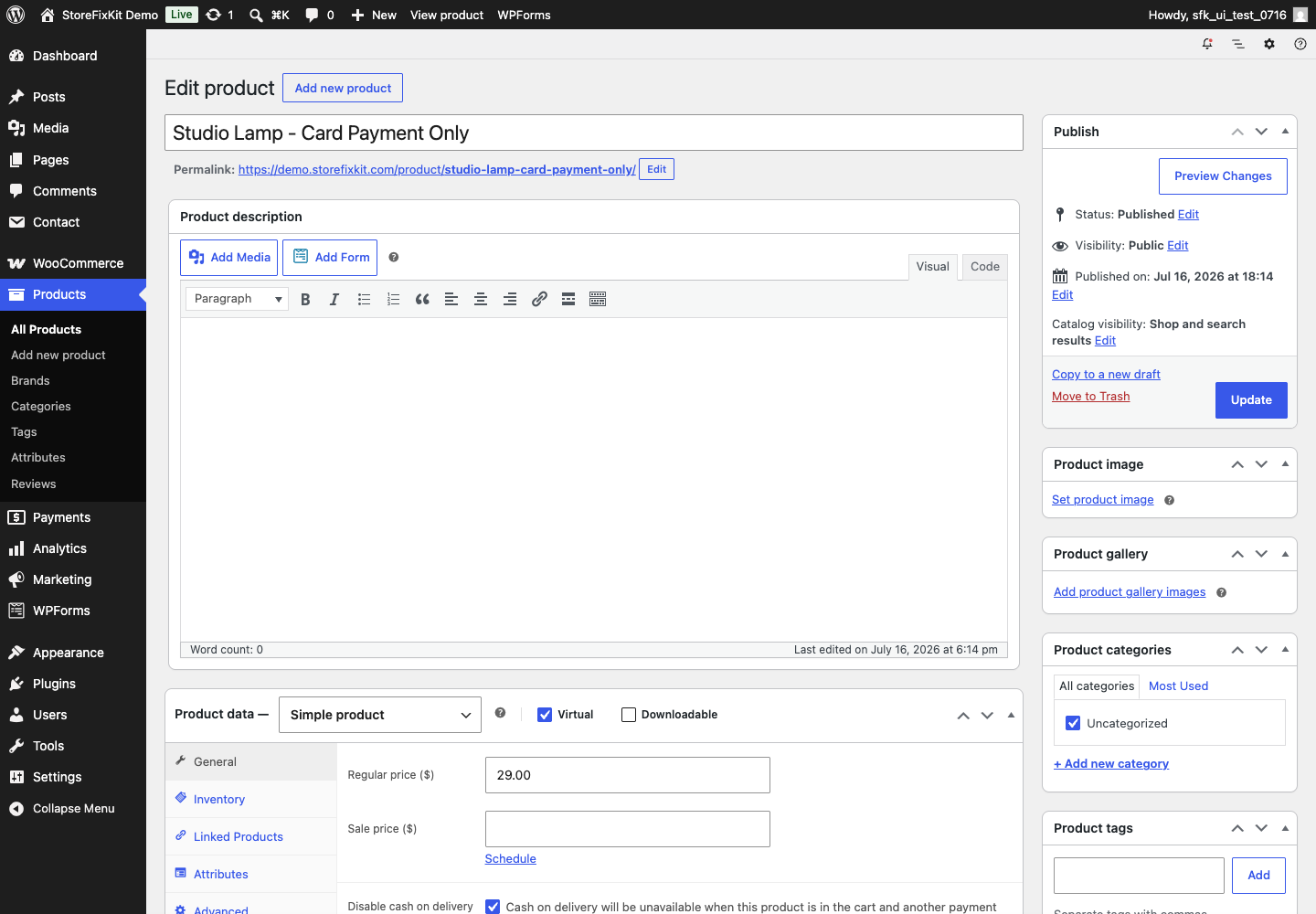
For a variable product, marking the parent applies to its variations. The free plugin does not add country, address, role, amount, category, tag, or shipping rules.
What happens at checkout
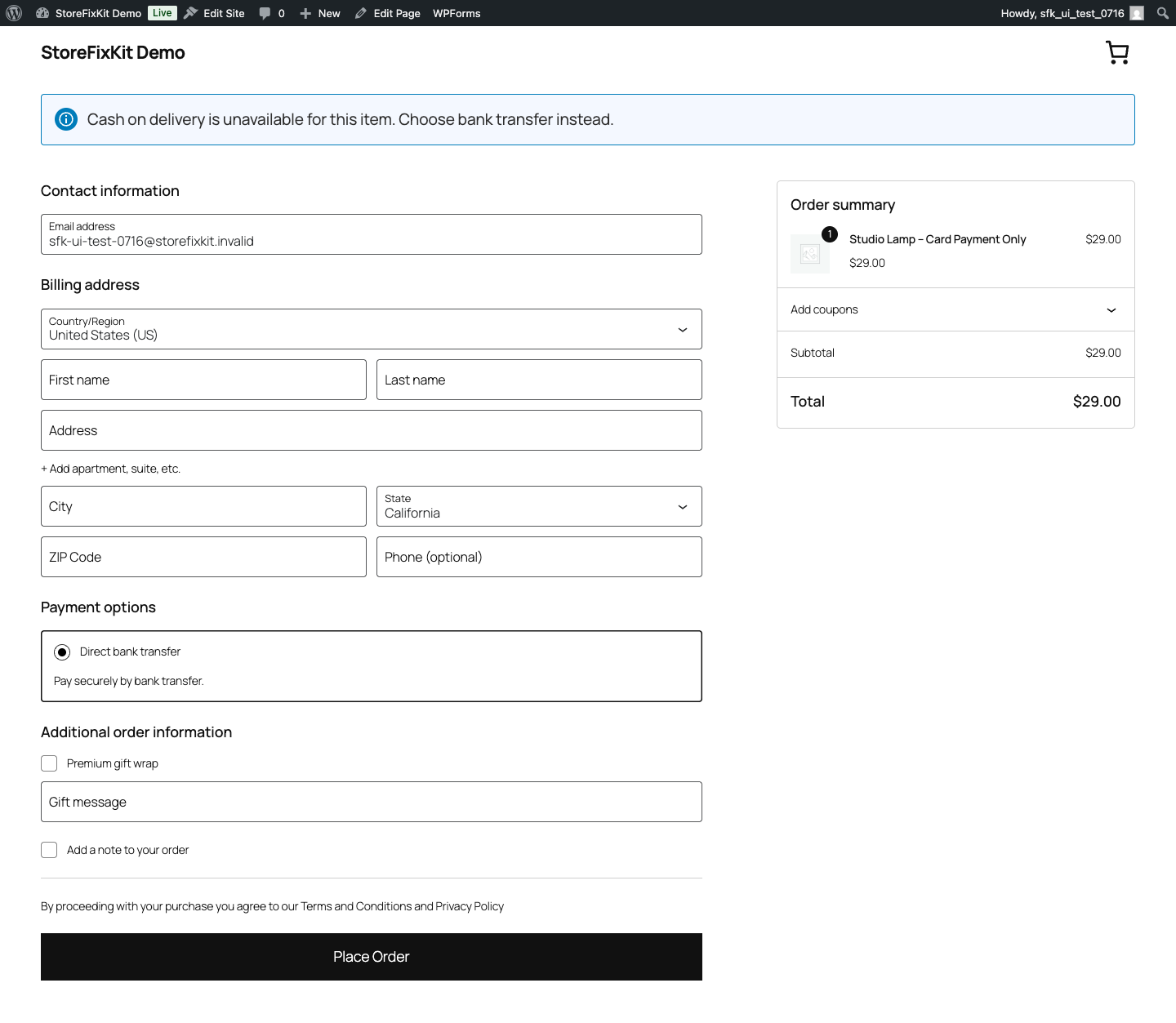
WooCommerce first builds the available gateway list for the real cart. StoreFixKit removes only the native cod gateway when a marked product is found. If COD is the shopper's only available gateway, the plugin leaves it visible instead of making checkout impossible.
The same server-side gateway filter is used for classic checkout and Checkout Block. There is no browser-only CSS or JavaScript hiding rule.
Free and Pro
Free marks individual products. Pro adds category, tag, individual variation, explicit product-exception, and shopper-explanation rules.
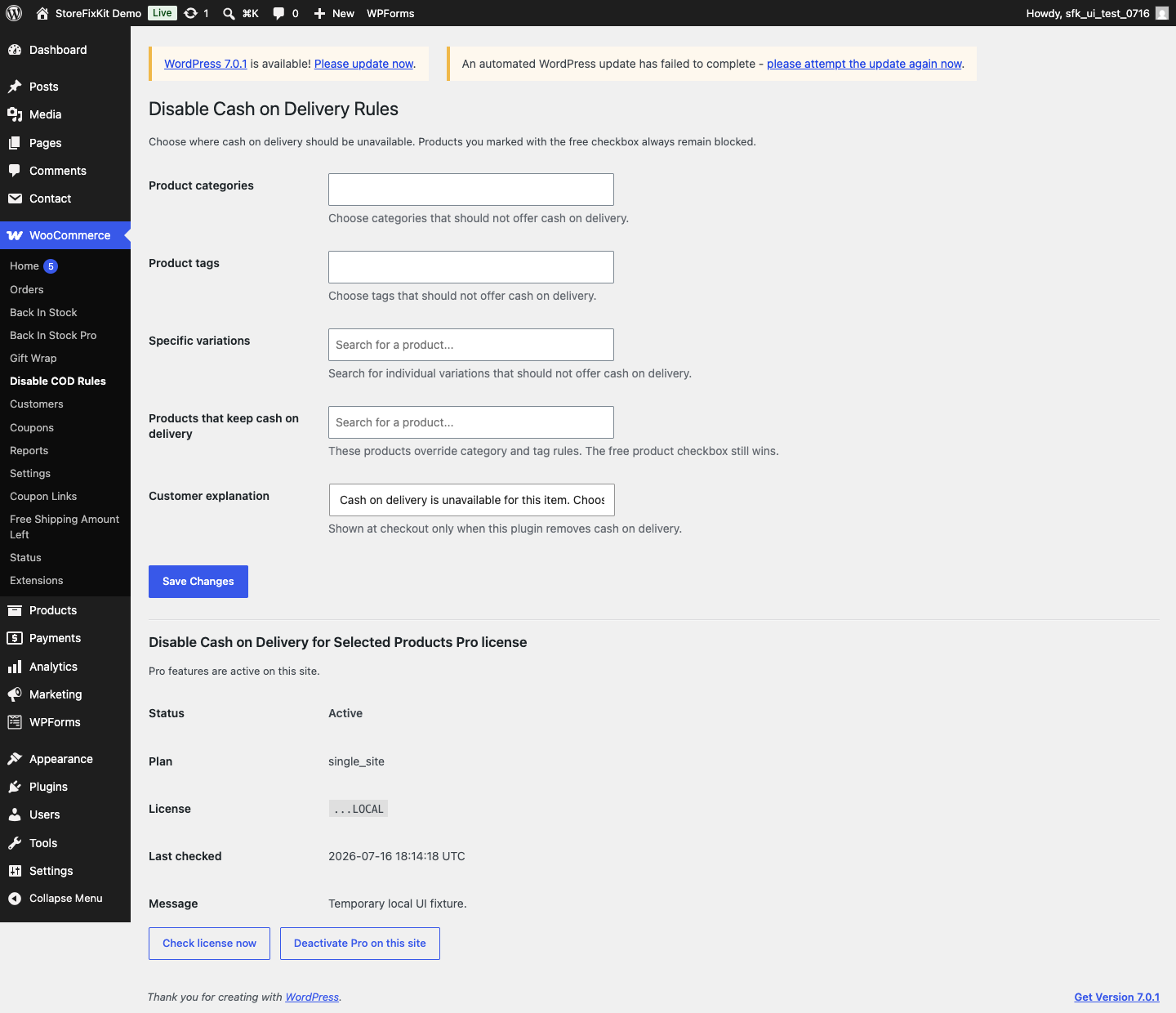
An explicit product exception can keep COD available when a broader category or tag rule would otherwise match. Deactivating Pro leaves the individual free product checkboxes working.
Start the 14-day Pro trial
- Open the product page.
- Select Start 14-day trial. No card is required to begin.
- Stripe returns to the StoreFixKit success page and the signed webhook creates a product-bound license.
- Copy the key and download the Pro 0.1.3 ZIP.
- Add a payment method through Add payment method / manage billing before day 14 to continue the $39 annual subscription. Stripe cancels the subscription at trial end when no payment method has been added.
Install and activate Pro
- Keep WooCommerce and the free plugin active.
- Upload and activate the Pro ZIP beside Free.
- Open WooCommerce > Disable COD.
- Paste the product license key and select Activate Pro.
- Add only the category, tag, variation, or exception rules you need.
- Write a short shopper explanation and save.
Use Check license now to refresh status or Deactivate Pro on this site before moving the license.
Safety and resource use
- The plugin filters only WooCommerce's current available-gateway array.
- It never changes the gateway's global enabled state or shipping-method settings.
- It never selects a replacement gateway, creates an order, edits totals, adds fees, or changes inventory.
- Free stores one yes/no product meta value. Pro stores one bounded rule option and its license state.
- It creates no custom table, cron event, telemetry, frontend asset, or public remote request.
- Product and cart errors fail passive: payment methods remain unchanged when the match cannot be proven.
Troubleshooting
COD is still visible
Confirm that the product was updated after checking the box. Verify that the cart contains that exact product or a variation whose parent is marked. Confirm that the gateway is WooCommerce's native cod gateway; third-party cash or pickup gateways are intentionally outside scope.
COD disappeared for the wrong cart
Check Pro category, tag, variation, and exception rules. Test with only one product in a fresh private-window cart. If Pro is active, use an explicit product exception for a product that should remain eligible.
The explanation is missing in Checkout Block
Confirm that Pro is licensed, the explanation is not blank, COD was actually removed, and another gateway remains. Refresh checkout after clearing caches. The explanation is a WooCommerce notice, not a hard-coded block overlay.
COD is the only payment method
StoreFixKit deliberately leaves COD visible when removing it would leave no gateway. Enable and configure another valid payment method before expecting the product rule to remove COD.
Rollback
- Back up the database and retain the current Free and Pro ZIPs.
- Deactivate Pro and Free.
- Install the previous known-good ZIPs.
- Activate Free first, then Pro.
- Confirm a marked product still has its checkbox and Pro rules remain saved.
- Test one marked cart, one unmarked cart, and a one-gateway checkout.
The verified 0.1.3 -> 0.1.2 -> 0.1.3 drill preserves owned settings. Rollback does not edit gateway settings, products, orders, totals, or stock.
Uninstall
Deleting Free removes only the owned _sfk_dcod_disabled product metadata. Deleting Pro removes sfk_dcod_pro_rules and its license option. WooCommerce products, categories, tags, variations, gateways, orders, and payment settings remain intact.
StoreFixKit Support
Use StoreFixKit Support and include the product ID, variation ID when relevant, whether the free checkbox is set, matching Pro rules, available gateway names with credentials removed, WooCommerce version, Free and Pro versions, checkout type, expected result, actual result, and screenshots. Never send customer addresses, order details, credentials, or a full license key.