Requirements
| WordPress | 6.0 or newer. The current demo environment is tested on WordPress 7.0. |
|---|---|
| PHP | 7.4 or newer. |
| WooCommerce | WooCommerce must be active. The form appears on sold-out simple products and out-of-stock variation selections. |
| The plugin uses WordPress mail. Production stores should use a real SMTP or transactional email provider. |
Install the plugin
- Upload the free plugin. In WordPress admin, open Plugins > Add New > Upload Plugin and upload `storefixkit-back-in-stock-0.1.3.zip`. After directory approval, it can also be installed directly from WordPress.org.
- Activate it. After activation, open WooCommerce > Back In Stock.
- Check WooCommerce stock visibility. If your store hides out-of-stock products from the catalog, shoppers may not find the product page and cannot subscribe.
What shoppers see
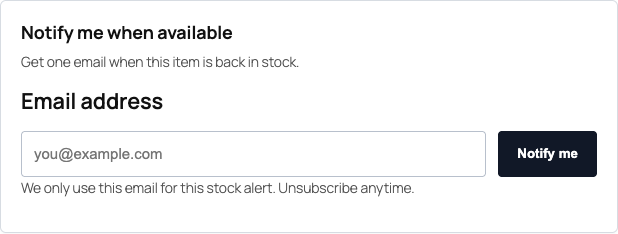
When an item is out of stock, shoppers see a compact email capture form. StoreFixKit keeps one active subscription per email, product, variation, and status so repeated form submits do not create duplicate active rows.
Configure the free email workflow
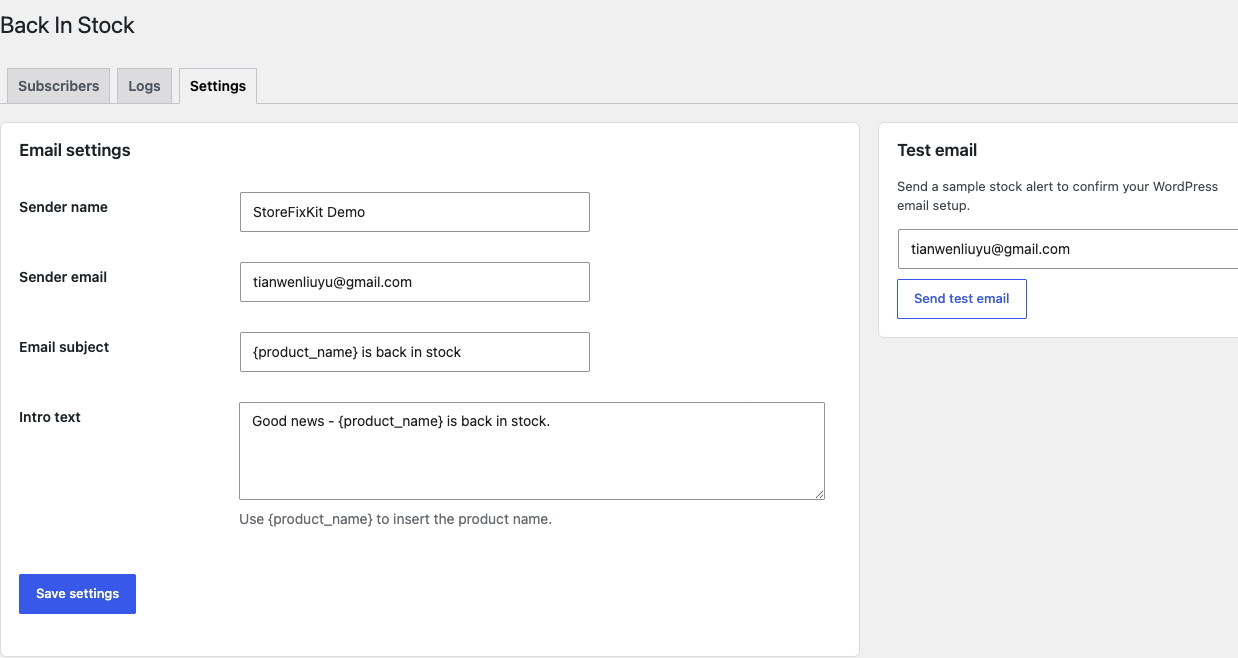
- Email settings. Set sender name, sender email, subject, and intro text. Use `{product_name}` where the product name should appear.
- Test email. Send a test email before relying on restock alerts. If the test fails, fix WordPress mail delivery first.
Buy, download, and activate Pro
- Choose a plan. Open the pricing page and choose 1, 5, or 50 sites. Every plan includes the same Pro features.
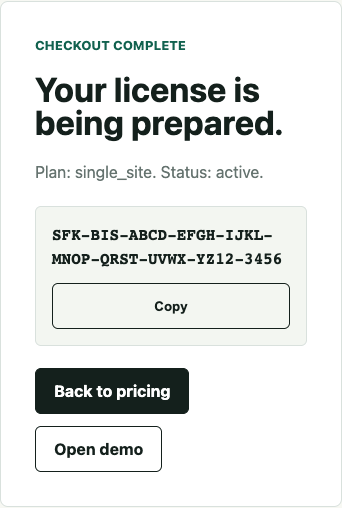
- Complete Stripe Checkout. The success page waits for the signed Stripe webhook to create the license.
- Copy the key and download Pro. When the license appears, the same page reveals the `storefixkit-back-in-stock-pro-0.1.0.zip` download button.
- Install the add-on. Upload the Pro ZIP beside the active free plugin and WooCommerce.
- Activate this site. Open WooCommerce > Back In Stock Pro, paste the key, and click Activate license.
Design and preview the Pro email
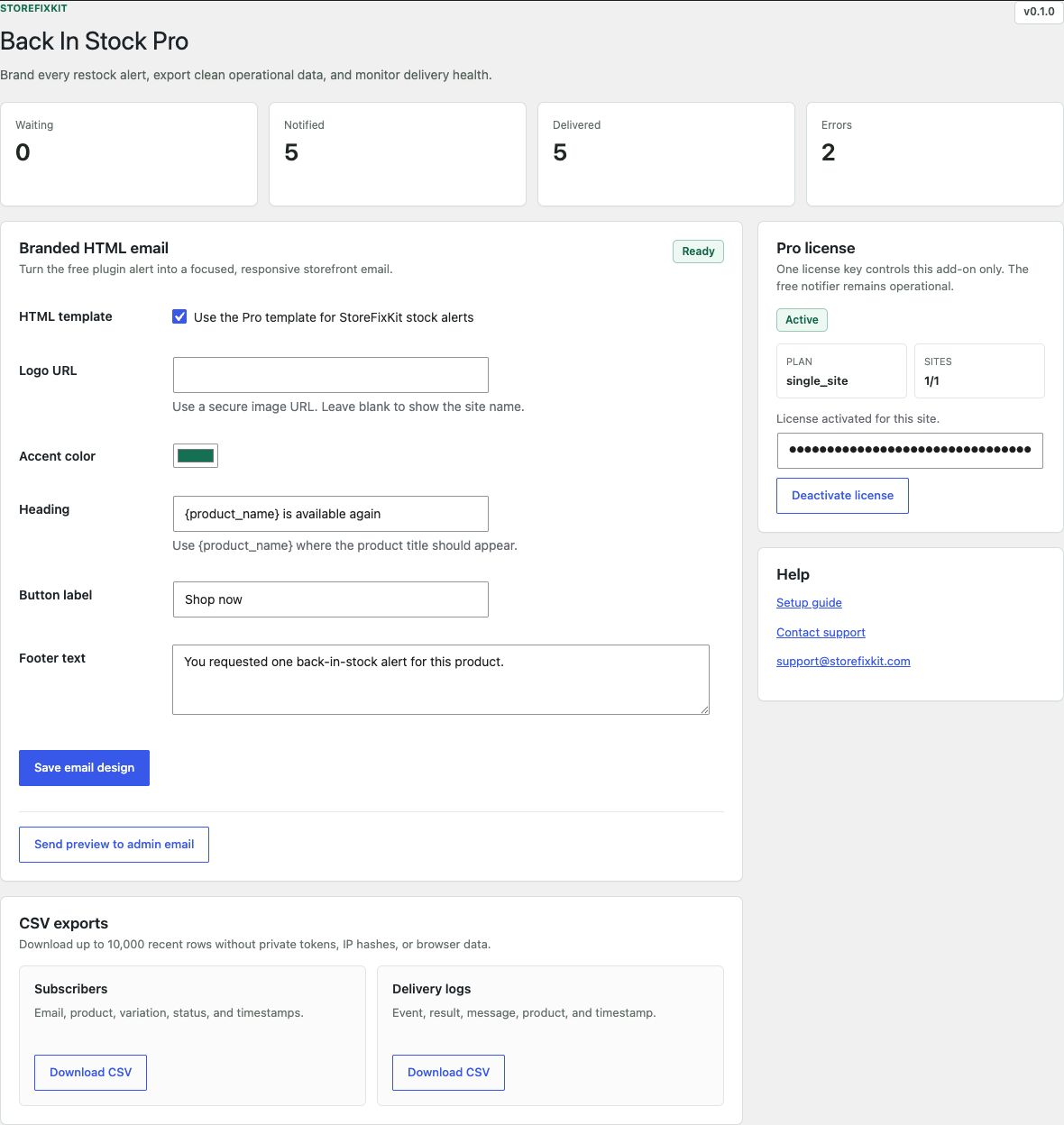
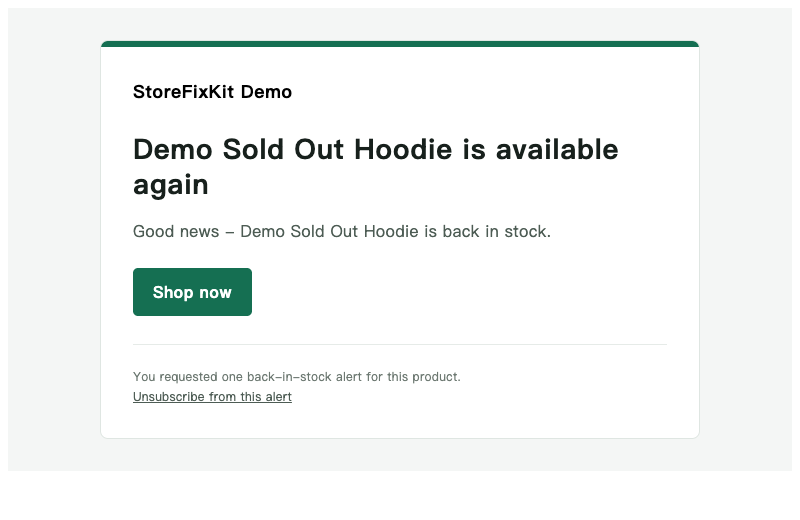
- Enable the HTML template. The option affects only StoreFixKit stock-alert messages, not other WordPress email.
- Add branding. Set a secure logo URL or leave it blank to use the site name. Choose an accent color, heading, button label, and footer.
- Send a preview. Use Send preview to admin email and inspect the message on desktop and mobile before a real restock.
- Keep the unsubscribe link. The template always retains the one-click alert unsubscribe URL from the free plugin.
Export subscribers and delivery logs
Use the two Download CSV buttons on the Pro page. Each export is limited to 10,000 recent rows and is protected by the WooCommerce manager capability, a WordPress nonce, and an active Pro license.
- Subscriber CSV: email, product ID, variation ID, status, and timestamps.
- Delivery CSV: event, result, message, product IDs, and timestamp.
- Deliberately excluded: unsubscribe tokens, IP hashes, and browser user-agent data.
- Spreadsheet safety: values beginning with formula control characters are neutralized before download.
Review subscribers and logs
The Subscribers tab shows recent active rows. The Logs tab records subscribe, unsubscribe, test email, and notification events so support can see what happened without guessing.

Troubleshooting checklist
- The form does not appear. Confirm WooCommerce is active, the product is out of stock, and the theme renders the standard single product summary hook.
- Variation alerts do not appear. Select a variation that is out of stock. In-stock variations do not need the alert form.
- Email does not send. Use the Test email panel. If WordPress mail fails, install and verify a transactional email provider before testing restock alerts again.
- License activation fails. Check the key format, confirm the site URL is correct, and retry. If it still fails, open a ticket with the license suffix and site URL.
- Pro email stays plain text. Confirm the Pro license is active, HTML template is enabled, and the message is a StoreFixKit stock alert. Pro intentionally ignores unrelated WordPress mail.
- CSV download is blocked. Sign in with an account that can manage WooCommerce and verify the Pro license status.
- A conflict is suspected. Temporarily test with WooCommerce plus StoreFixKit only, then re-enable the theme and plugins one by one.
Need help?
Open a support ticket with the product page URL, plugin version, WooCommerce version, WordPress version, license key suffix, and screenshots. Start here: StoreFixKit Support.